
Memoh - Containerized AI Agent Platform
Memoh integration guide — Connect the self-hosted containerized AI agent platform to 88API, creating AI bots with long-term memory for Telegram, Discord, Lark, QQ, WeChat, and more.
Memoh is an open-source, self-hosted AI agent platform where each bot runs in its own isolated container with persistent memory and a dedicated filesystem. It supports 9 channels including Telegram, Discord, Lark (Feishu), QQ, Matrix, WeCom, WeChat, Email, and a built-in Web UI, along with MCP tool calling, browser automation, scheduled tasks, and other rich agent capabilities.
- Website: https://memoh.ai
- Documentation: https://docs.memoh.ai
- GitHub: https://github.com/felinics/Memoh
Key Features
- Containerized Isolation: Each bot runs in its own containerd container with a dedicated filesystem and network, supporting snapshots and data import/export
- Memory Engine: LLM-driven fact extraction, hybrid retrieval (dense + sparse + BM25), 24-hour context loading, memory compaction and rebuild
- Multi-Channel Support: Telegram, Discord, Lark (Feishu), QQ, Matrix, WeCom, WeChat, Email, Web UI
- MCP Support: Full MCP protocol support (HTTP / SSE / Stdio / OAuth), with independent MCP connection management per bot
- Browser Automation: Built-in headless browser powered by Playwright, supporting web browsing, form filling, screenshots, and more
- Web Dashboard: Modern management interface built with Vue 3 + Tailwind CSS, featuring streaming chat, tool call visualization, file management, and more
Quick Installation
Memoh is deployed via Docker. One-click install (requires Docker):
curl -fsSL https://memoh.sh | shRun it as a regular user and do not add sudo (the installer exits with an error when run as root; it uses sudo for docker commands on its own only when Docker requires it). If pulling images is slow in mainland China, use: curl -fsSL https://memoh.sh | USE_CN_MIRROR=true sh
Or install manually:
git clone --depth 1 --recurse-submodules --shallow-submodules https://github.com/felinics/Memoh.git
cd Memoh
cp conf/app.docker.toml config.toml
# Edit config.toml: be sure to change admin.password and auth.jwt_secret
export MEMOH_INTERNAL_RPC_SHARED_SECRET="$(openssl rand -hex 32)"   # Save this value; recreating the containers later requires the same value
docker compose up -d
If your user is not in the docker group, use sudo -E docker compose up -d (-E keeps the variable exported above; plain sudo drops it and startup fails). If you changed postgres.password in config.toml, also run export POSTGRES_PASSWORD=the-same-password first.
After startup, visit http://localhost:8082. One-click install: the username is admin and the password is the random password shown during installation (the installer prints Admin login: admin / ... at the end, so note it down). Manual install: the default is admin / admin123; change it in config.toml first.
88API Integration
Memoh supports any OpenAI-compatible model provider, allowing you to use 88API to centrally manage and access various AI model services.
Configuration Steps
Obtain a 88API API Key
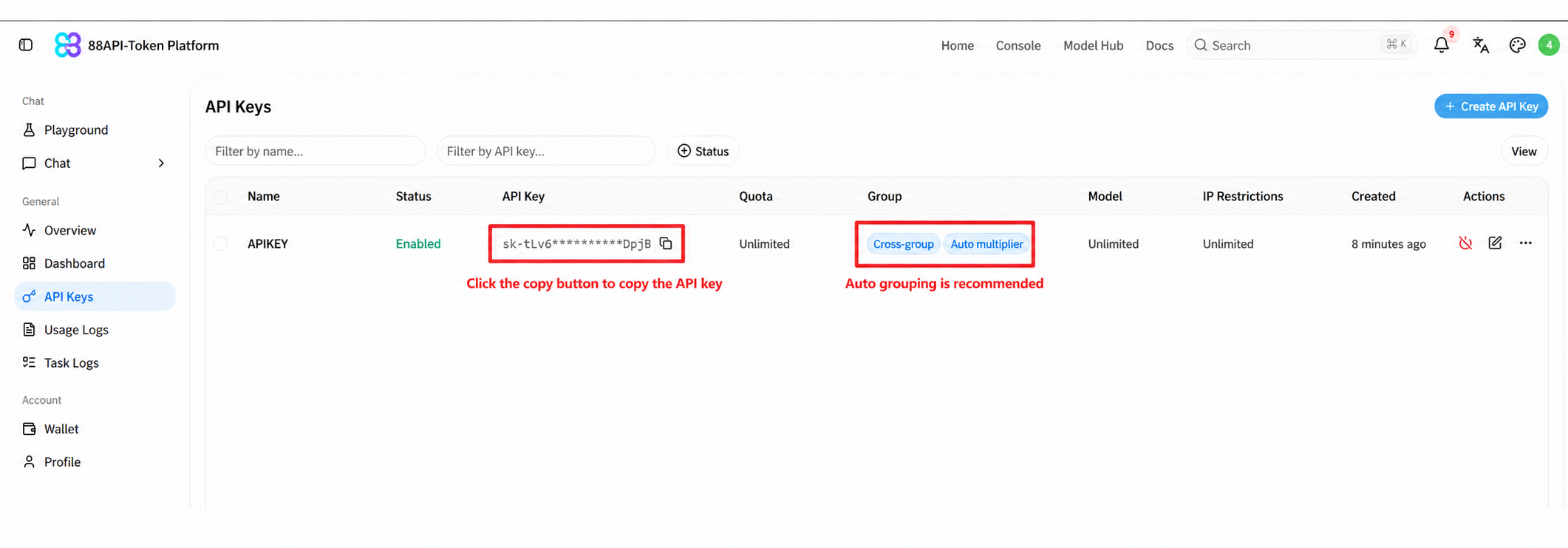
After registering and logging in to 88API, click "Console" at the top, open "API Keys" in the left sidebar, and click "Create API Key" in the upper-right corner. Choosing the auto group is recommended. Then click "Create".
Once created, click the copy button to copy the generated API Key.
Add a Model Provider in Memoh
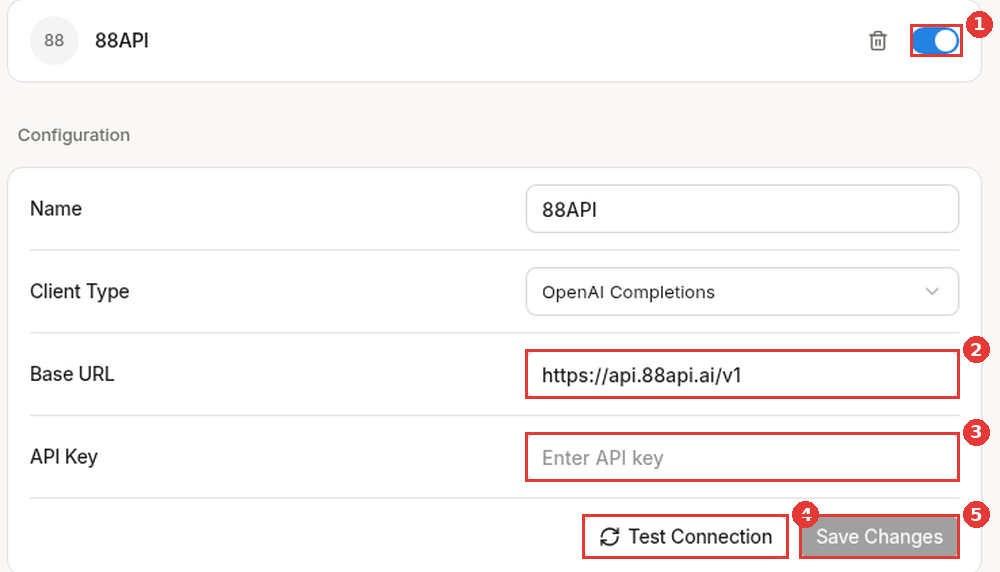
After signing in, open Settings → Providers, add a provider and choose the New API template (Client Type is OpenAI Completions; if it is not in the list, it has already been added, so open the existing New API provider). Fill in:
- Name: you can change it to
88API - Base URL ②: replace the template's
https://your.new-api-provider.com/v1withhttps://api.88api.ai/v1(must end with /v1) - API Key ③: paste the API key you copied from 88API
Click Save Changes ⑤, click Test Connection ④ to check connectivity, and make sure the enable switch ① at the top is on (blue).
Import and Enable Models
Click Import Models and select the models you need (for example gpt-6.1-sol, claude-sonnet-5-5, deepseek-v4.1-flash). Note: bulk-imported models are disabled by default. Turn on the enable toggle for each model you want in the model list, otherwise the bot settings will show No models available.
Configure a Model for Your Bot
In the Interaction settings, set Default chat model ① to the 88API model you enabled (for example gpt-6.1-sol). If the drop-down has no models, the imported models are not enabled yet: turn on their switches in the provider's model list first.
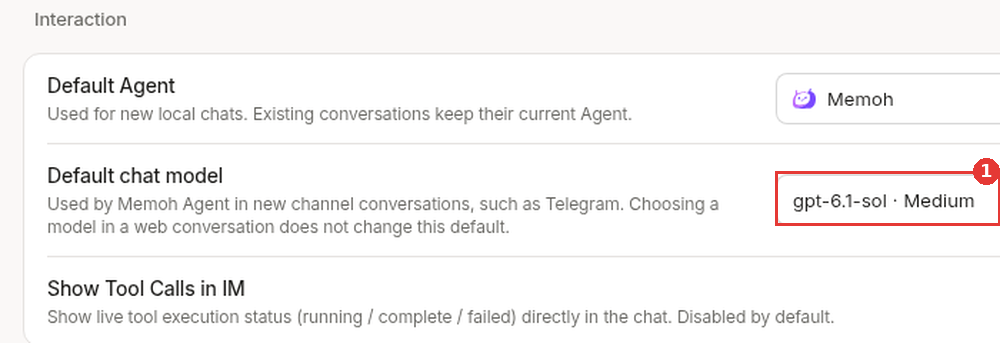
Image input: the current version of Memoh does not pass images uploaded in a chat to the model; the model only receives the attachment's file path. Even with a vision model such as
deepseek-v4.1-flash, images in the chat cannot be recognized. Use another client when you need image understanding.
You have now successfully configured 88API as the model provider for Memoh. You can chat with AI bots through any of Memoh's channels (Telegram, Discord, Lark, etc.), and all requests will be routed through 88API.