
CC Switch - All-in-One AI CLI Management Tool
CC Switch tutorial — a cross-platform tool for unified management of provider configs, MCP servers, and system prompts for Claude Code, Codex, Gemini CLI, OpenCode and other AI coding tools. One-click import from 88API.
🔀 CC Switch is an open-source, cross-platform desktop tool that manages provider configs, MCP servers, system prompts and Skills for 10 AI coding tools, including Claude Code, Claude Desktop, Codex, Gemini CLI, OpenCode and OpenClaw. It ships with a built-in 88API preset (just enter your API key to use it) and lets you freely switch between multiple AI coding assistants without manually editing config files.
- GitHub Repository: https://github.com/farion1231/cc-switch
- Download: GitHub Releases
Key Features
🔌 Provider Management
- One-click switching — Switch between Claude Code, Codex, and Gemini API configs instantly, no manual env vars or config file editing
- Multi-endpoint support — Configure multiple endpoints per provider with API key management and latency speed tests
- Claude model mapping — For Claude, set a main model plus default Haiku / Sonnet / Opus model mappings
🛠️ MCP Server Management
- Unified cross-app management — Manage MCP servers for Claude / Codex / Gemini from a single panel
- Three transport types — Supports stdio, HTTP, and SSE (Server-Sent Events)
- Auto sync — Unified import/export with bidirectional synchronization
💬 Prompts Management
- Multi-preset system prompts — Unlimited presets with quick switching
- Cross-app support — Claude (
CLAUDE.md), Codex (AGENTS.md), Gemini (GEMINI.md) - Markdown editor — CodeMirror 6 with live preview
🌐 Multi-platform Support
- Desktop app — Native installers for Windows, macOS, and Linux
- CLI (community edition) — For servers / SSH environments, use SaladDay/cc-switch-cli
88API Integration
Method 1: Use CC Switch's built-in 88API preset (recommended)
CC Switch ships with a built-in 88API preset that already has the API endpoint and models filled in, so all you need to do is paste your API key.
-
Choose a tool and add a provider Open CC Switch, choose the tool you want to configure on the left (e.g. Codex or Claude Code), and click Add Provider (添加供应商) at the top right.
-
Select the 88API preset Under Third-party platforms (第三方平台), find 88API (or type
88APIin the search box at the top) and click it. If you can't find 88API, update CC Switch to the latest version first.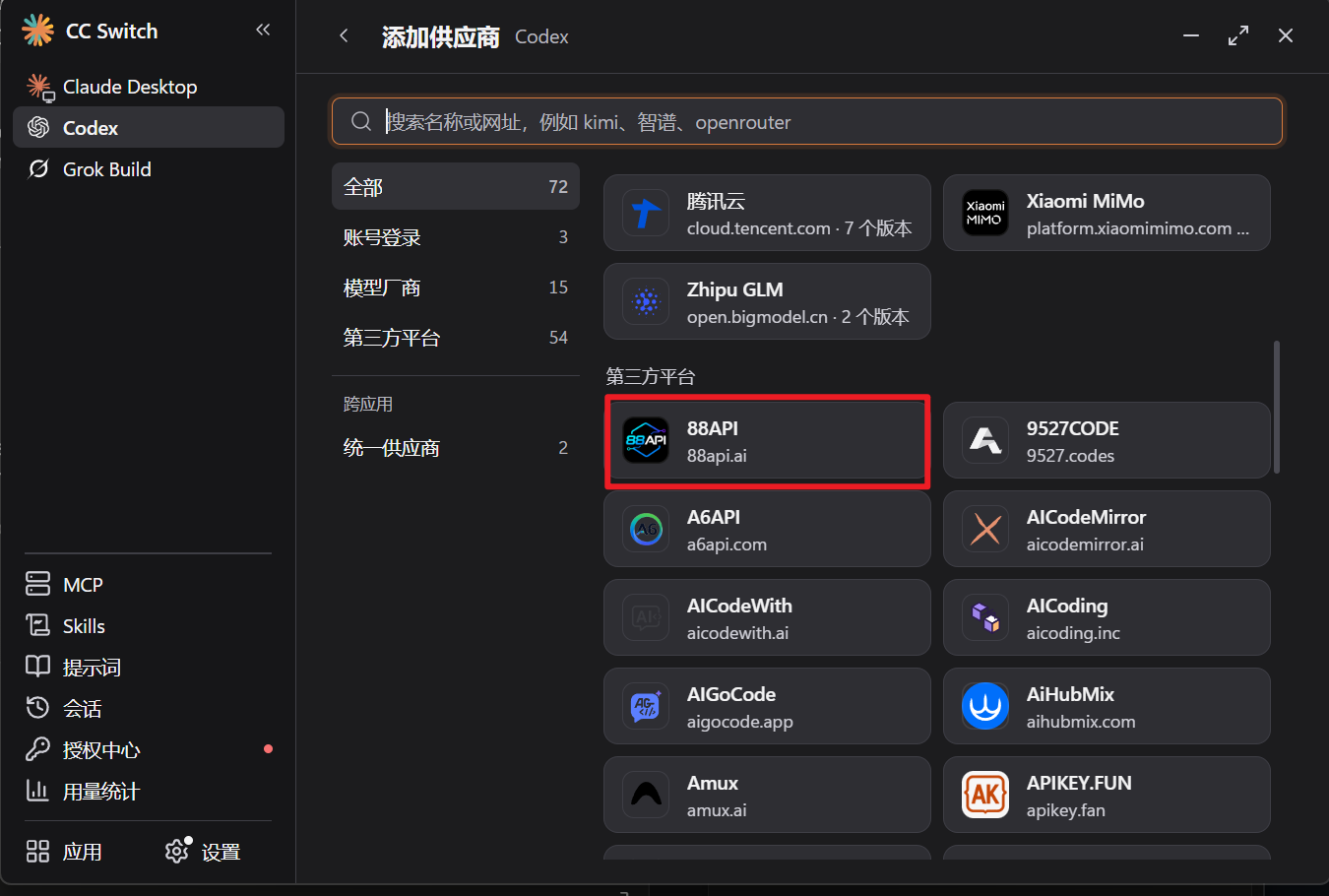
These screenshots show CC Switch's Chinese interface; the steps are the same in other languages.
-
Fill in only the API key In the API Key field, paste the key you copied from the API Keys page of the 88API console, then click Add (添加) at the bottom right. The name, website link and API endpoint are all filled in by the preset, so leave them as they are. For Codex the endpoint is
https://api.88api.ai/v1, and Full URL (完整 URL) stays off.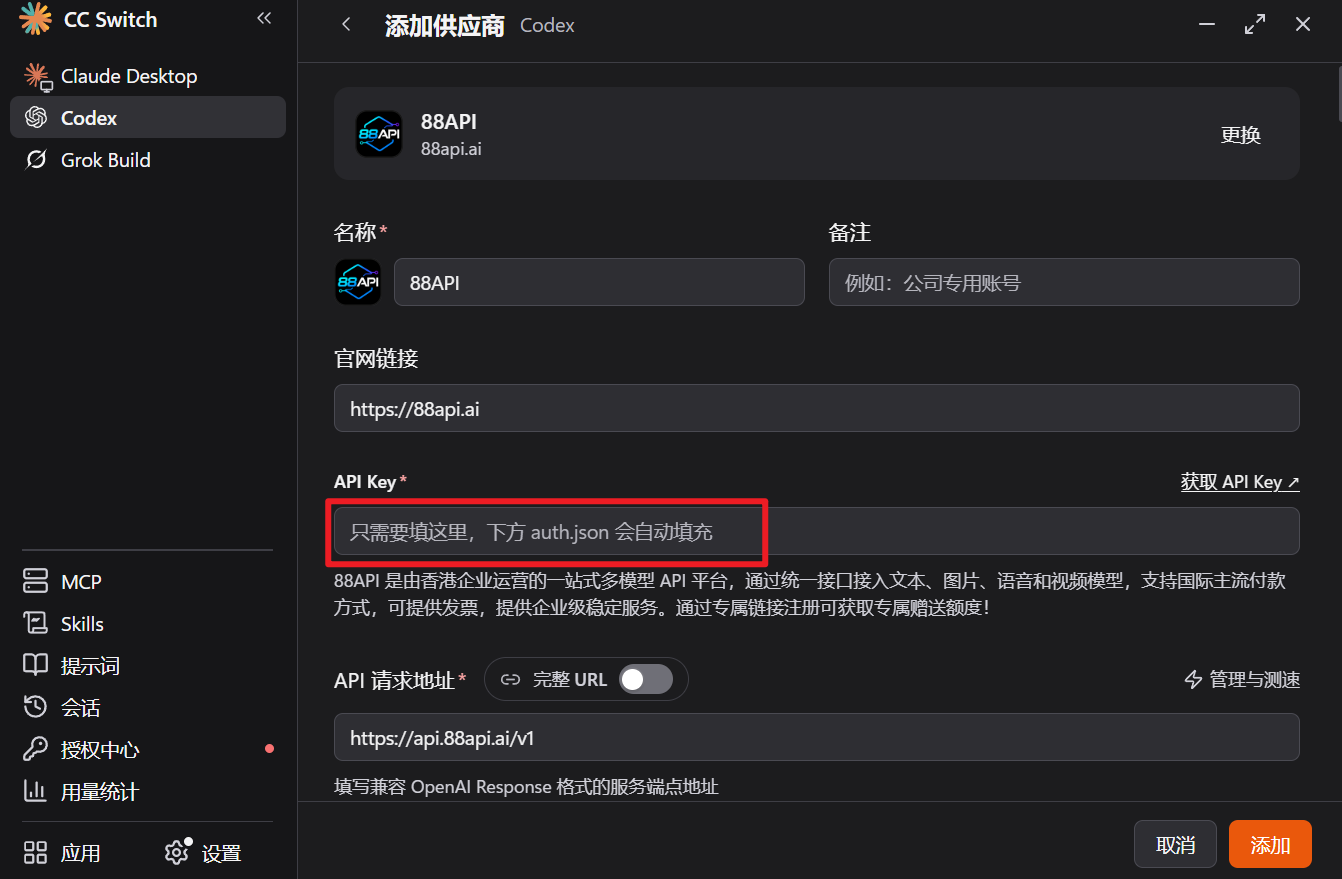
-
Enable 88API Back in the provider list, click the ▶ button to the right of 88API to enable it. Once its status changes to In use (使用中), the setup is complete.
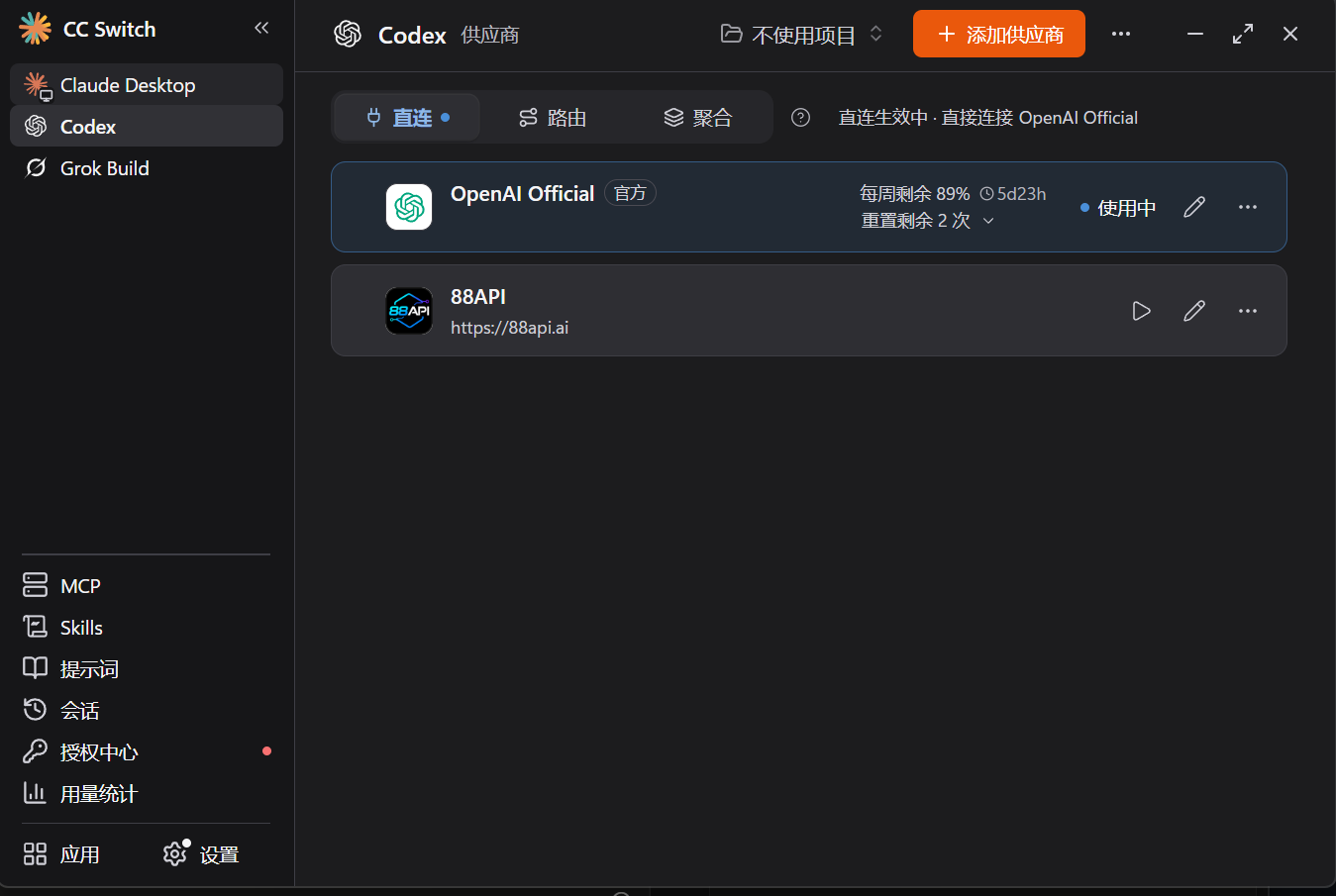
When it takes effect: Claude Code picks up the change immediately; for Codex and Gemini CLI, restart the terminal or the CLI, and fully quit and reopen the Codex desktop app.
The Codex model that comes with the preset depends on your CC Switch version; some versions use gpt-5.6-sol (it still works). We recommend clicking the edit button to the right of 88API and changing the model to gpt-6.1-sol. The selected model must be available in the key's group.
If you need to add a provider manually instead of using the preset, note that CC Switch does not add or remove /v1, and each tool needs a different address:
| Tool | API address | Recommended model |
|---|---|---|
| Claude Code | https://api.88api.ai (no /v1) | claude-sonnet-5-5 (Opus tier claude-opus-5-5, Haiku tier claude-haiku-5-5) |
| Codex | https://api.88api.ai/v1 (must include /v1) | gpt-6.1-sol |
| Gemini CLI | https://api.88api.ai (no /v1) | gemini-3.8-flash |
For OpenCode, OpenClaw, Hermes, Pi, MiniMax Code and other tools, likewise simply use the built-in 88API preset.
Method 2: One-click import from the 88API console
You can also import an API key into CC Switch with one click from the 88API console. The imported name, API address and model are the same as in CC Switch's built-in 88API preset, so there is nothing to fill in yourself.
One-click import supports Claude Code CLI, Codex, Gemini CLI and Grok Build. Claude Desktop, OpenCode, OpenClaw, Hermes, Pi and MiniMax Code are not supported yet; add them with Method 1 instead.
Prerequisite: CC Switch is installed (see "Installation" below) and has been opened at least once (on macOS, move it to the Applications folder first, then open it). Otherwise the browser cannot open
ccswitch://links.
-
Open the import dialog On the API Keys page of the 88API console, click the "⋯" button at the far right of the row of the key you want to use, then choose CC Switch. The Import to CC Switch dialog opens (the CC Switch app is not launched yet).
-
Choose the app and check the details Under Application, choose the tool you want to import into. The dialog shows the provider name after import (88API), the API address, the default model and the key's group.
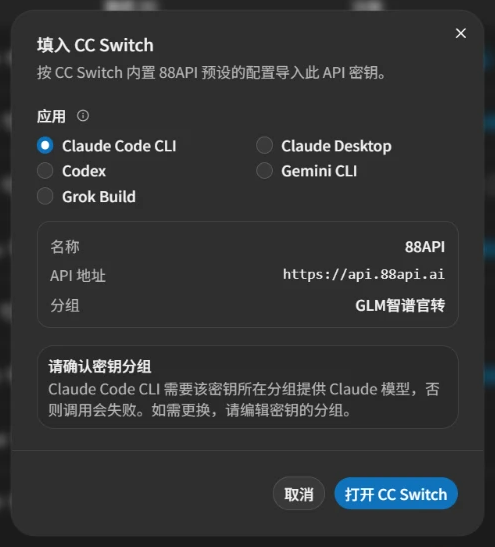
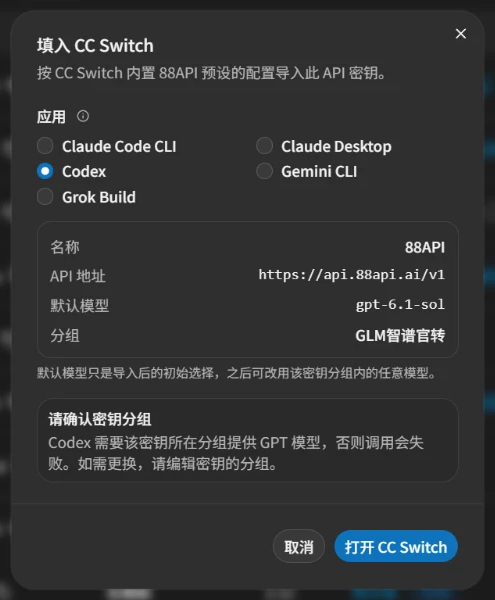
These screenshots show the Chinese console UI. The console is also available in English, so follow the labels in the text.
Each app is imported with the following settings:
App API address Default model Claude Code CLI https://api.88api.aiNot set; Claude Code uses its own default model (same as the preset) Codex https://api.88api.ai/v1gpt-6.1-solGemini CLI https://api.88api.aigemini-3.8-flashGrok Build https://api.88api.ai/v1grok-4.7- The default model is only the initial choice. You can switch to any model in the key's group later.
- Check the key group: Claude Code CLI needs a group that provides Claude models, Codex needs GPT models, Gemini CLI needs Gemini models and Grok Build needs Grok models; otherwise requests will fail. If the group is wrong, first edit the key on the API Keys page and change its group. The group shown in the screenshots is just an example.
- If you choose Claude Desktop, the button changes to Copy Key. Copy the key, then follow Method 1: select the 88API preset under Claude Desktop in CC Switch, paste the key and save.
- Click the ⓘ icon next to Application to see how to add other tools.
-
Import and apply Click Open CC Switch and allow the browser to open CC Switch. CC Switch shows a Confirm Import Provider dialog. Check the Provider Name (88API), API Endpoint and Model, leave Switch to this provider after import turned on, then click Import. Click Cancel to discard the import.
API Endpoint lists two addresses:
https://api.88api.ai, marked Primary, and the backuphttps://88api.ai(for Codex and Grok Build, both end with/v1). Both work, so there is no need to change them. The change takes effect the same way as in Method 1.
Providers imported with the old console (named My Claude / My Codex / My Gemini) keep working. If you'd like to tidy up, delete the old providers in CC Switch and use the newly imported 88API provider instead.
Show the balance in CC Switch
CC Switch can show your 88API wallet balance (in CNY) right on the provider card. Create an access token in the 88API console, then enter it in CC Switch's usage query.
-
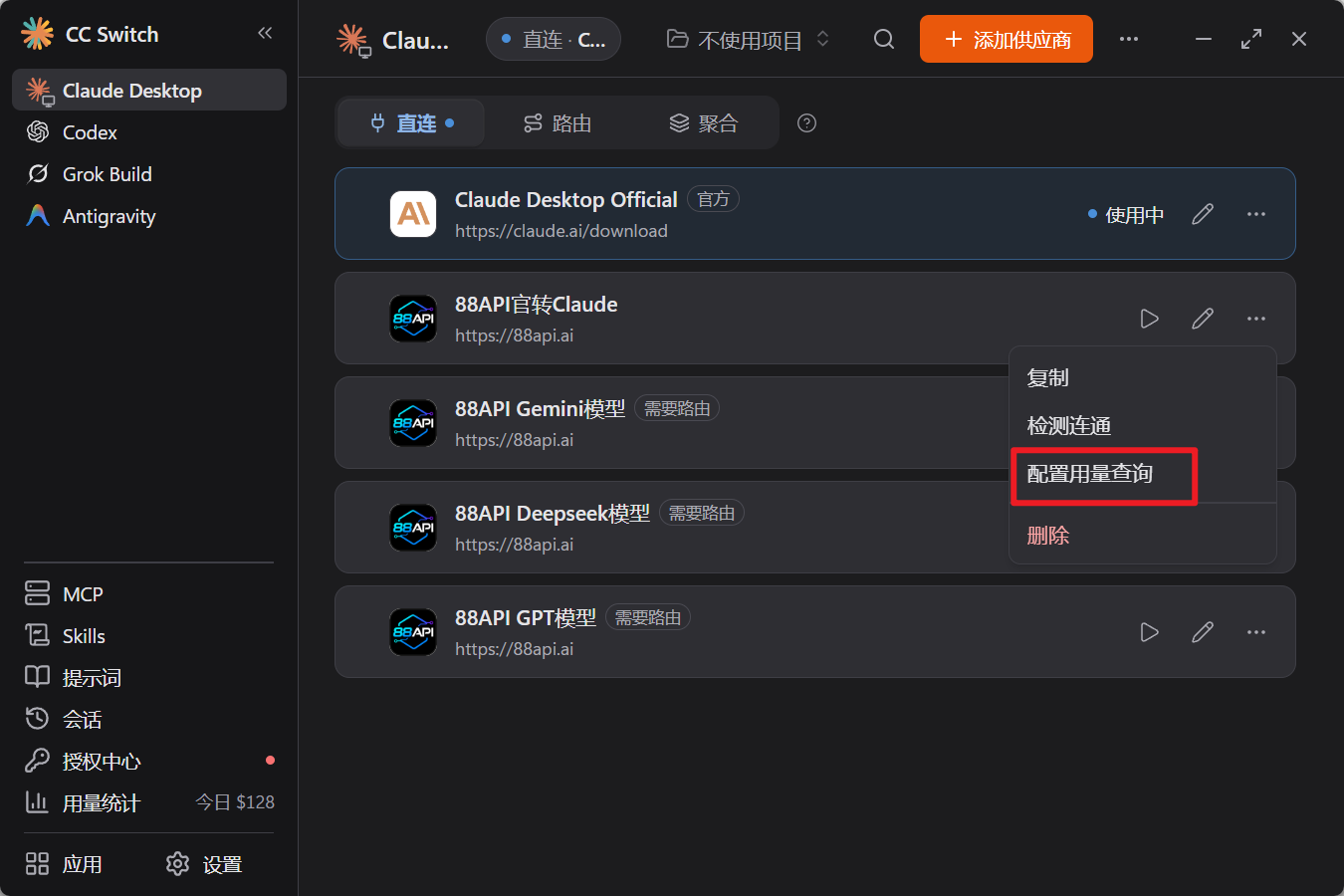
Open the usage query settings In CC Switch, hover over the 88API card, click "⋯" on the right and choose "Configure usage query" (confirm the prompt the first time).
-
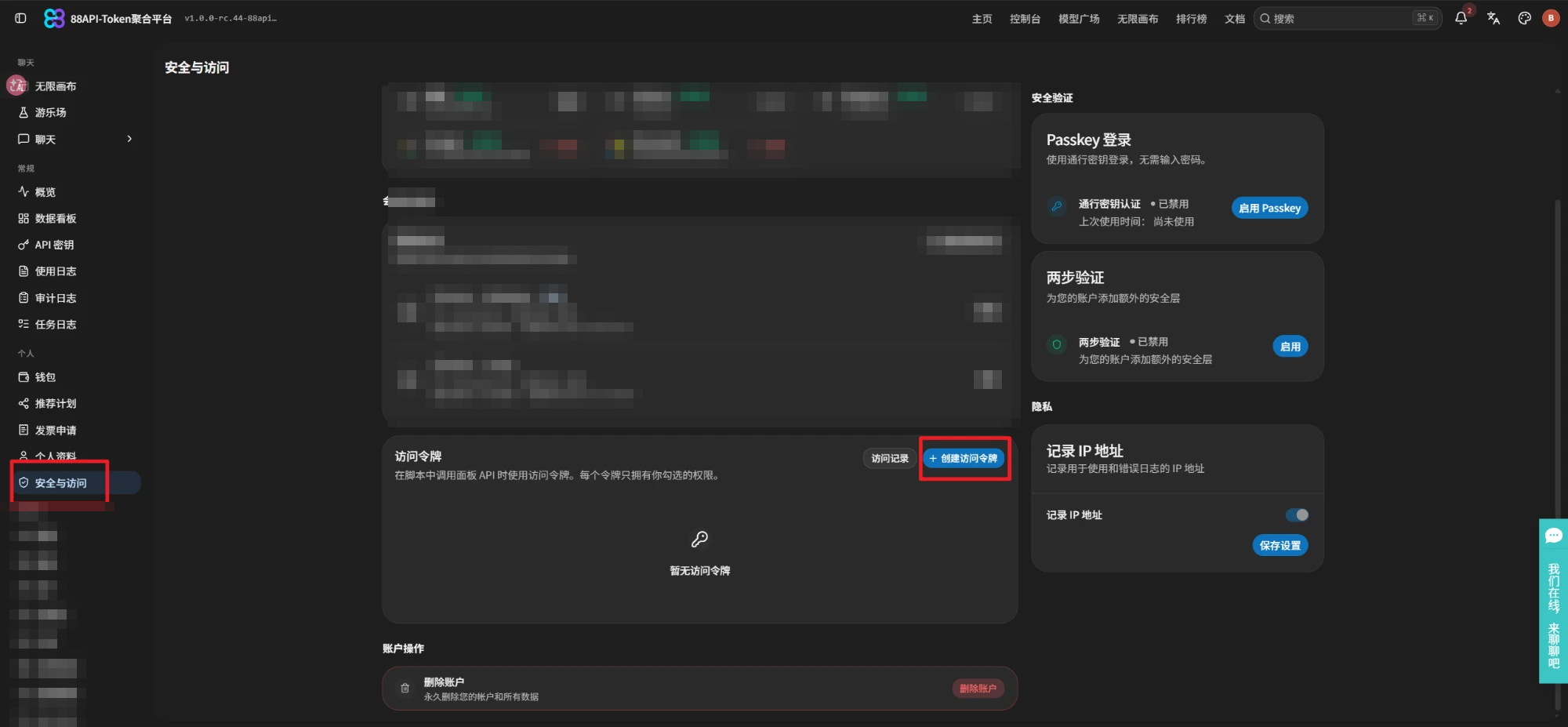
Create an access token in the 88API console Sign in to the 88API console, open "Security & Access" on the left, and click "Create access token" under "Access tokens".
-
Set a name and permissions Enter a "Token name" such as
balance, and choose an expiration as needed (with "Never expires" the token stays valid until you revoke it, so keep it safe). Under "Permissions" > "Personal", check "View" for Profile, Usage and Wallet only, leave "Edit" and the other permissions unchecked, click "Create access token" and copy the token.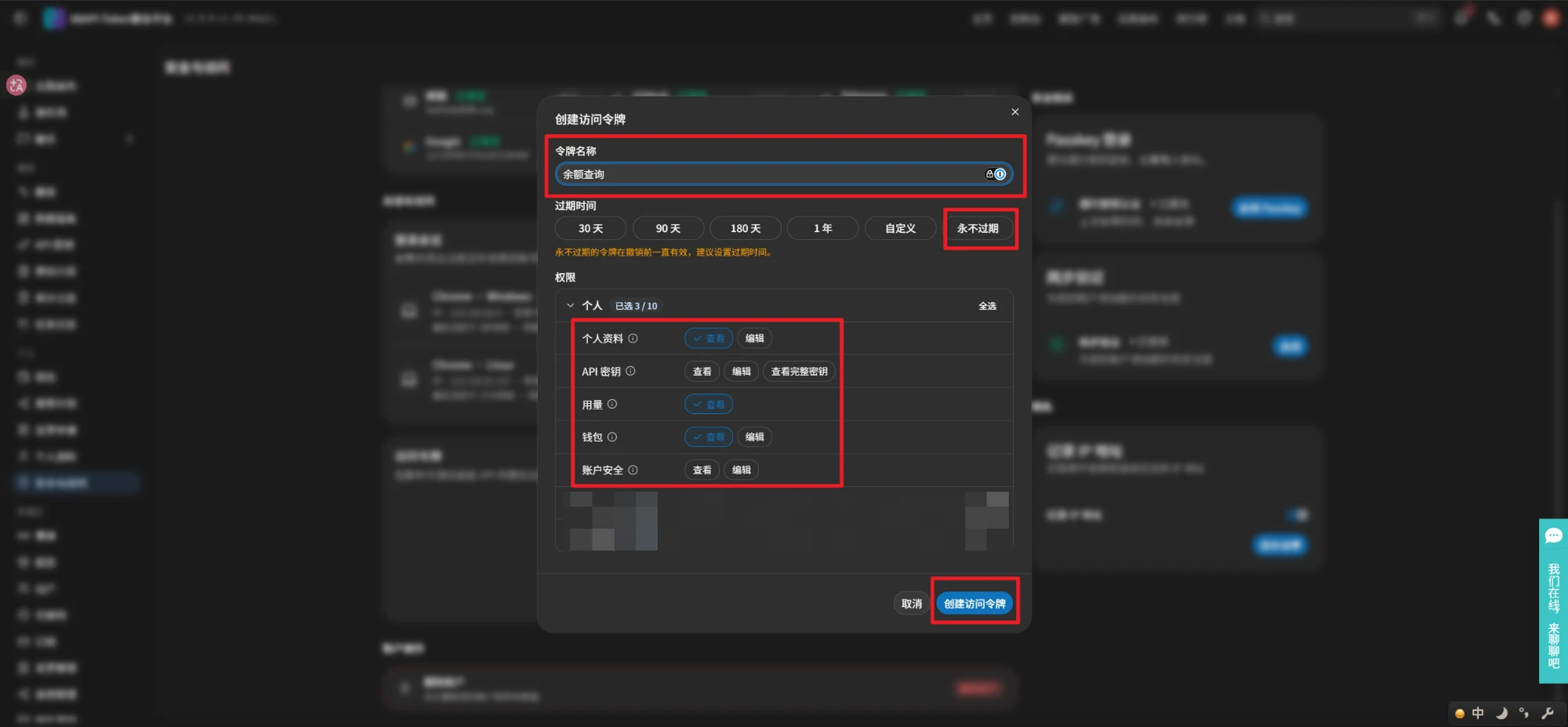
-
Find your user ID Open "Profile" on the left of the console. The "User ID" next to your name is the number you need in the next step.

-
Fill in the NewAPI template Back in CC Switch's "Configure usage query": turn on "Enable usage query", choose the NewAPI preset template, set "Base URL" to
https://88api.ai, paste the token from step 3 into "Access Token", and enter the number from step 4 in "User ID". Set the "Auto query interval" as you like (in minutes; 0 turns it off), then click "Save config".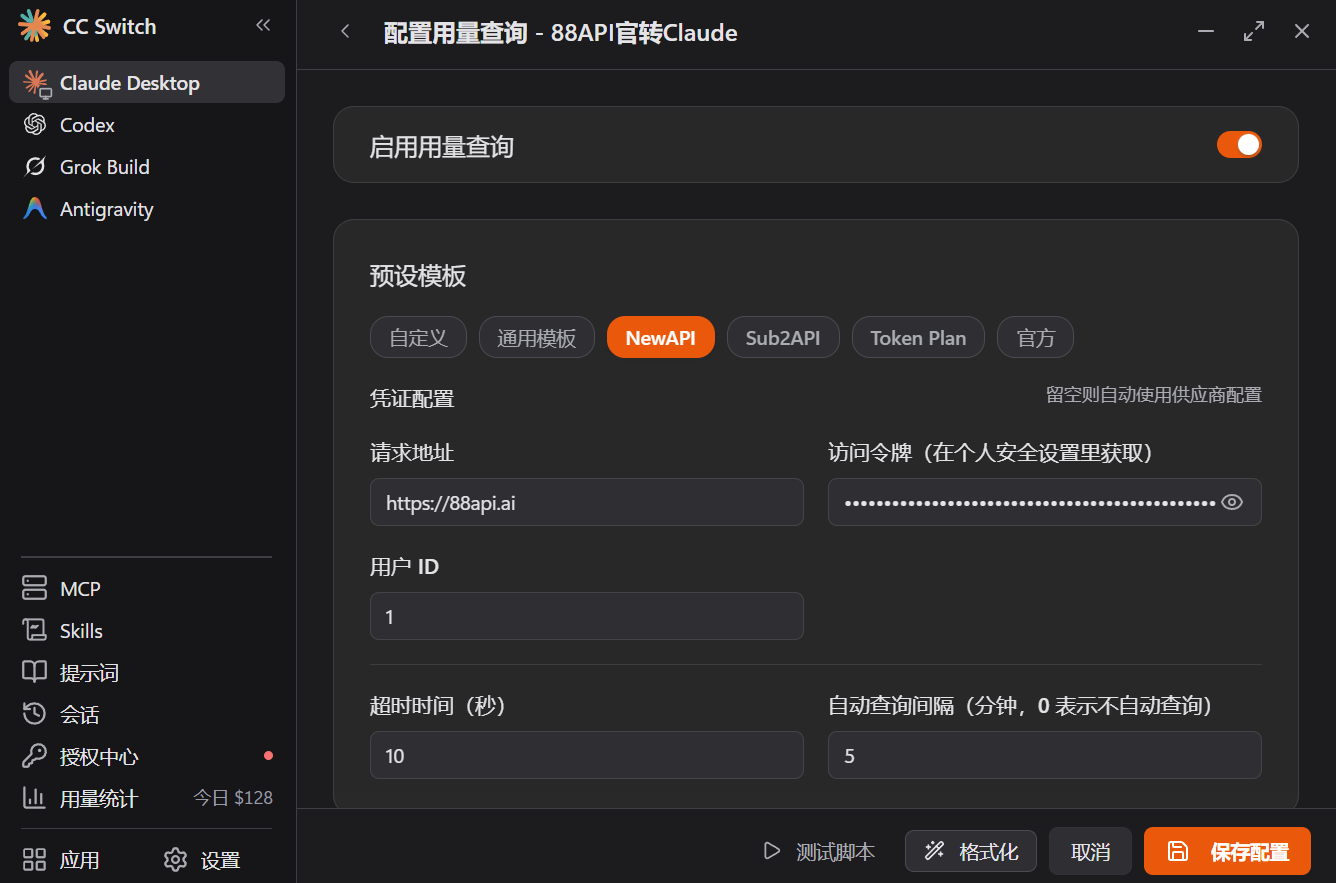
-
Change the unit to CNY After saving, the card shows the balance, but the NewAPI template labels it USD. 88API balances are in CNY; the number is already correct, only the unit needs changing.
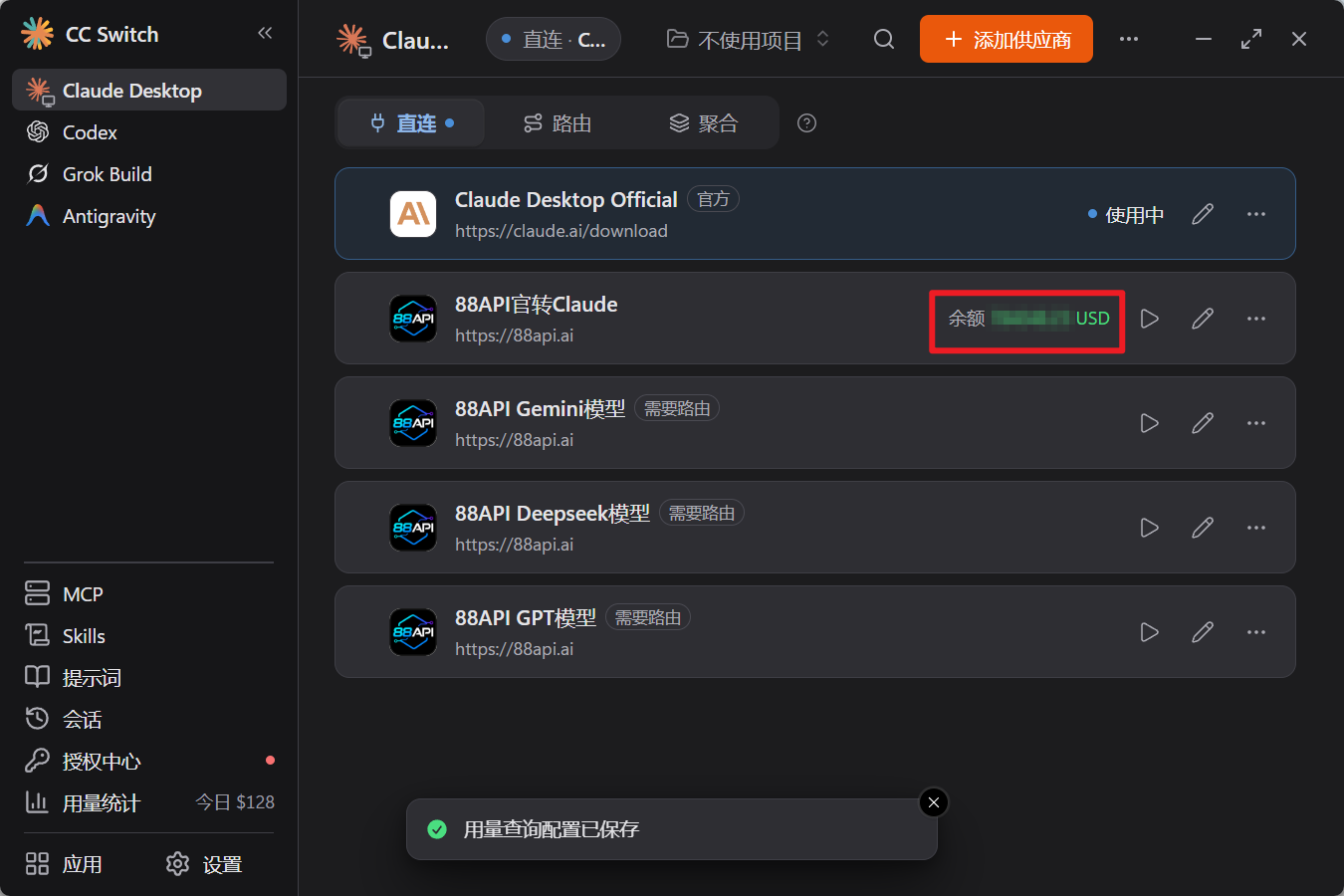
Open "Configure usage query" again, scroll down to the script, change
unit: "USD"tounit: "CNY"and click "Save config".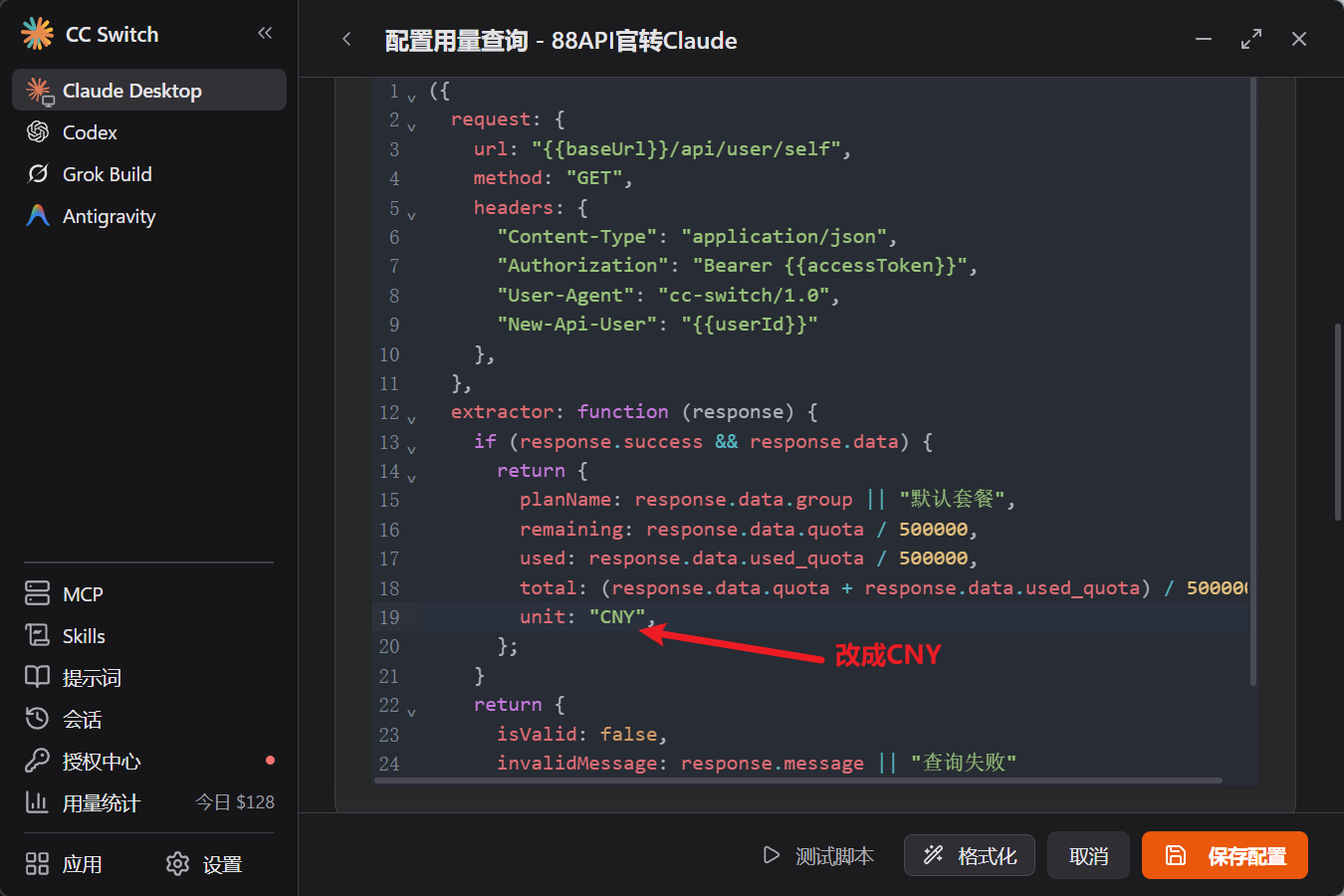
The card now shows "余额 ××× CNY".
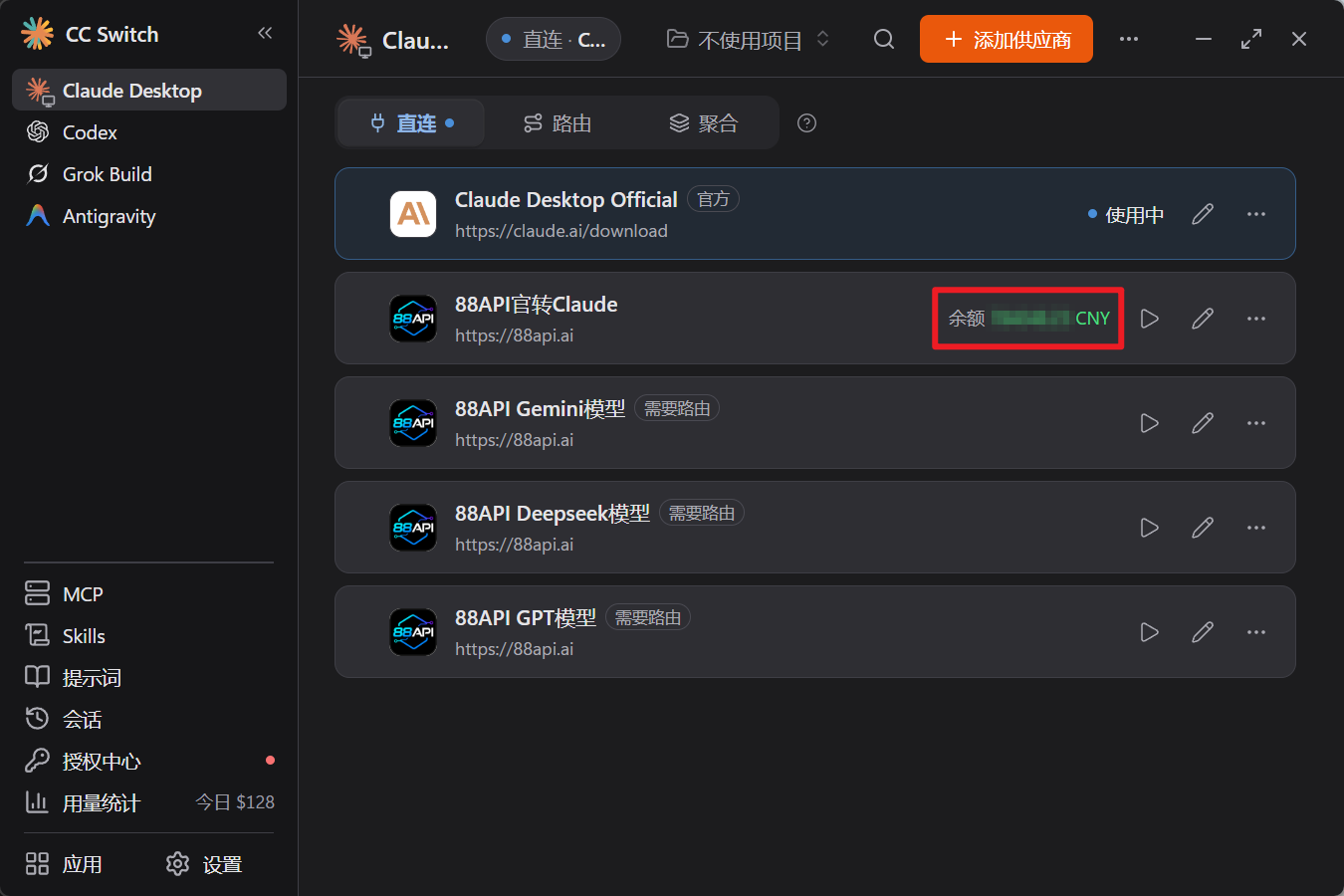
- An access token can read your account information. Don't share it; if it leaks, revoke it under "Security & Access" and create a new one.
- One token can be used for several 88API cards, but each card has to be set up separately.
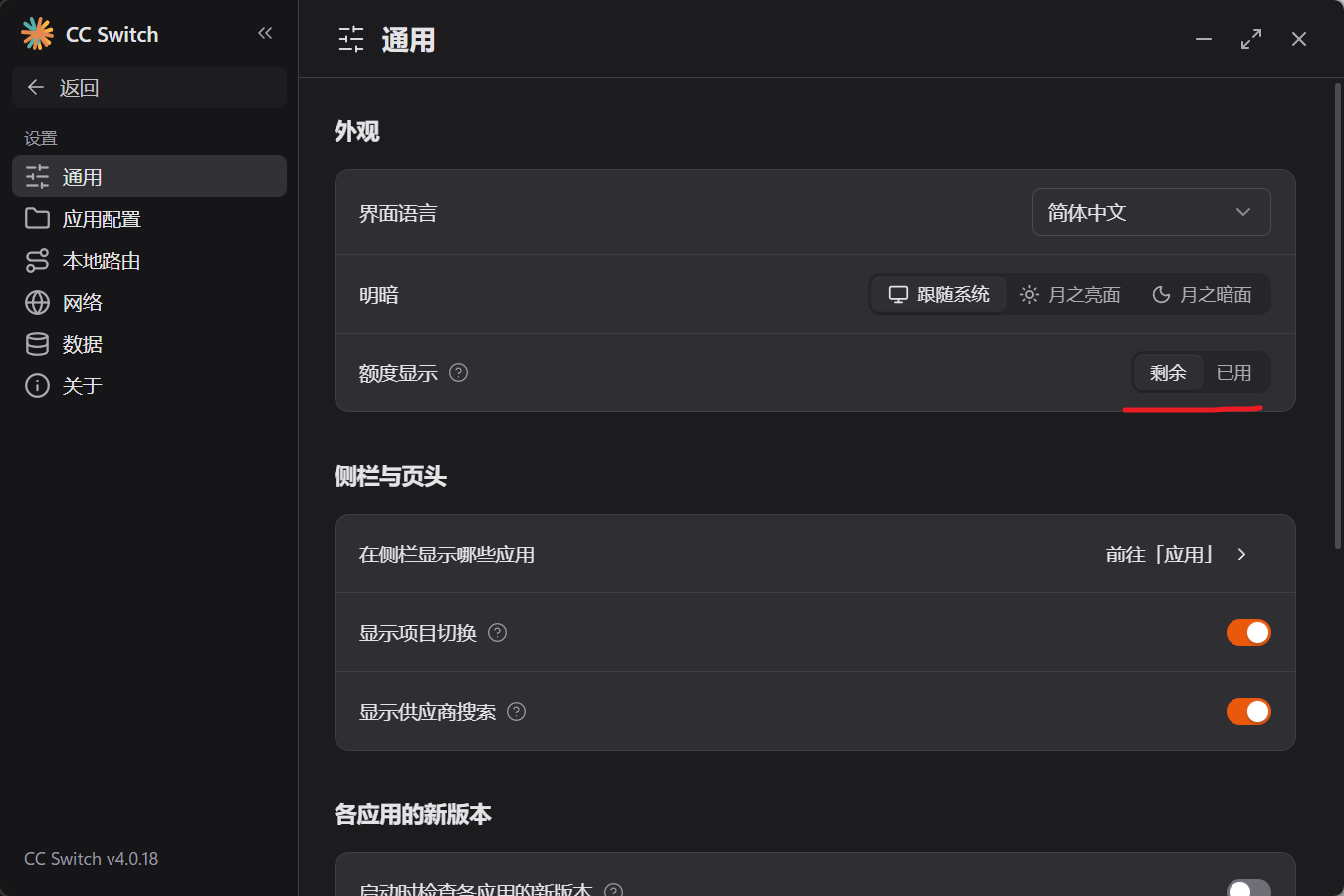
Tip: in CC Switch "Settings" → "General" → "Quota display", you can choose whether cards show the quota "Left" or "Used".
Installation
macOS (Homebrew recommended)
brew install --cask cc-switchCC Switch is now in the official Homebrew cask repository, so brew tap farion1231/ccswitch is no longer needed. That third-party tap is no longer maintained; if you added it before, remove it with brew untap farion1231/ccswitch.
Windows
Download the .msi installer or portable .zip from Releases.
Linux
Download the .deb, .rpm or .AppImage package (x86_64 / arm64) from Releases.
ArchLinux users:
paru -S cc-switch-binServers / SSH Environments (no GUI)
CC Switch officially ships only the desktop app. For servers or remote SSH environments, use the community command-line edition recommended in the official README, CC Switch CLI (macOS / Linux):
curl -fsSL https://github.com/SaladDay/cc-switch-cli/releases/latest/download/install.sh | bashOn macOS you can also use brew install cc-switch-cli. The CLI edition cannot use one-click import from the 88API console; choose the built-in 88API preset, or fill in the addresses from the "Method 1" table above.