
Let an Agent Make Images and Videos in One Sentence
Send the plugin repository URL and your 88API key to Claude Code, Codex, ZCode, DeepSeek Harness, Trae or another Agent, then create images, short clips and ads with a single sentence.
Who this is for
These two plugins are for people who already work inside an Agent client: describe what you want in plain language, and the Agent picks a model, calls 88API and saves the results on your computer. If you would rather submit jobs on a web page and keep all results in one place, use the Image Workbench (Chinese) and the Video Workbench (Chinese).
88API offers two open-source plugins. They install the same way and work the same way:
| Plugin | What it does | Repository |
|---|---|---|
| 88API-Image-Gen (images) | Uses every 88API image model: GPT Image, Nano Banana (Gemini), Grok, Seedream and Midjourney. Text-to-image, image editing, multiple reference images, 1K/2K/4K, transparent backgrounds, batches | github.com/blackdm666/88API-image-gen |
| 88API-Video-Studio (videos) | Uses every 88API video model. Makes a short clip or ad from one sentence; turns a reference video back into a prompt; packages it into a project you can remake | github.com/blackdm666/88API-Video-Studio |
They work with Claude Code, Codex, ZCode, DeepSeek Harness and Trae, plus Cursor, Cline, Gemini CLI and other clients that can read SKILL.md skills. You can install either plugin on its own or both together: use the image plugin to make keyframes, characters or product shots, then hand them to the video plugin to make the video.
Easiest Install: Copy a Message to the AI
You don't need to know any commands. Open your Agent client, start a new conversation, and send it the message below exactly as written:
Please read this article first: https://88api.ai/en/docs/apps/image-video-plugins/
Then follow the "Installation Instructions for the AI" section of the article
to install the 88API image plugin and video plugin in the client I'm using right now.
Wherever I need to click a button, confirm something or start a new conversation myself, please tell me what to do step by step.
When the installation is done, tell me what to do next and ask me for my 88API key.
Then just do what the AI tells you:
- If an approval or confirmation pops up during installation, click Allow;
- When the AI asks you to start a new conversation (a new task in Codex), do it;
- When the AI asks for your key, create and copy one as described in Step 2 below and send it;
- Then try something like "Paint a watercolor of a little orange cat" or "Make a 10-second vertical sneaker ad."
If you only want one plugin, change "image plugin and video plugin" in the message to the one you want. If the AI says it can't open the page, give it the repository URL from Step 1 below instead.
Quick Start: Send the Repository URL and Key to the AI
If you'd rather not use the message above, you can do it yourself in three steps.
Step 1: Send the Repository URL to the AI
Start a new conversation in your Agent client and send it the line below (for video only, use the video plugin's URL; for both, send both lines):
Please install this plugin for me: https://github.com/blackdm666/88API-image-gen
Please install this plugin for me: https://github.com/blackdm666/88API-Video-Studio
The Agent picks the right install method for your client. When it's done, start a new conversation (a new task in Codex) so the client loads the plugin. If the Agent can't install it (for example, you have to click a button on a settings page), follow Manual Installation below.
Step 2: Send the Key to the AI
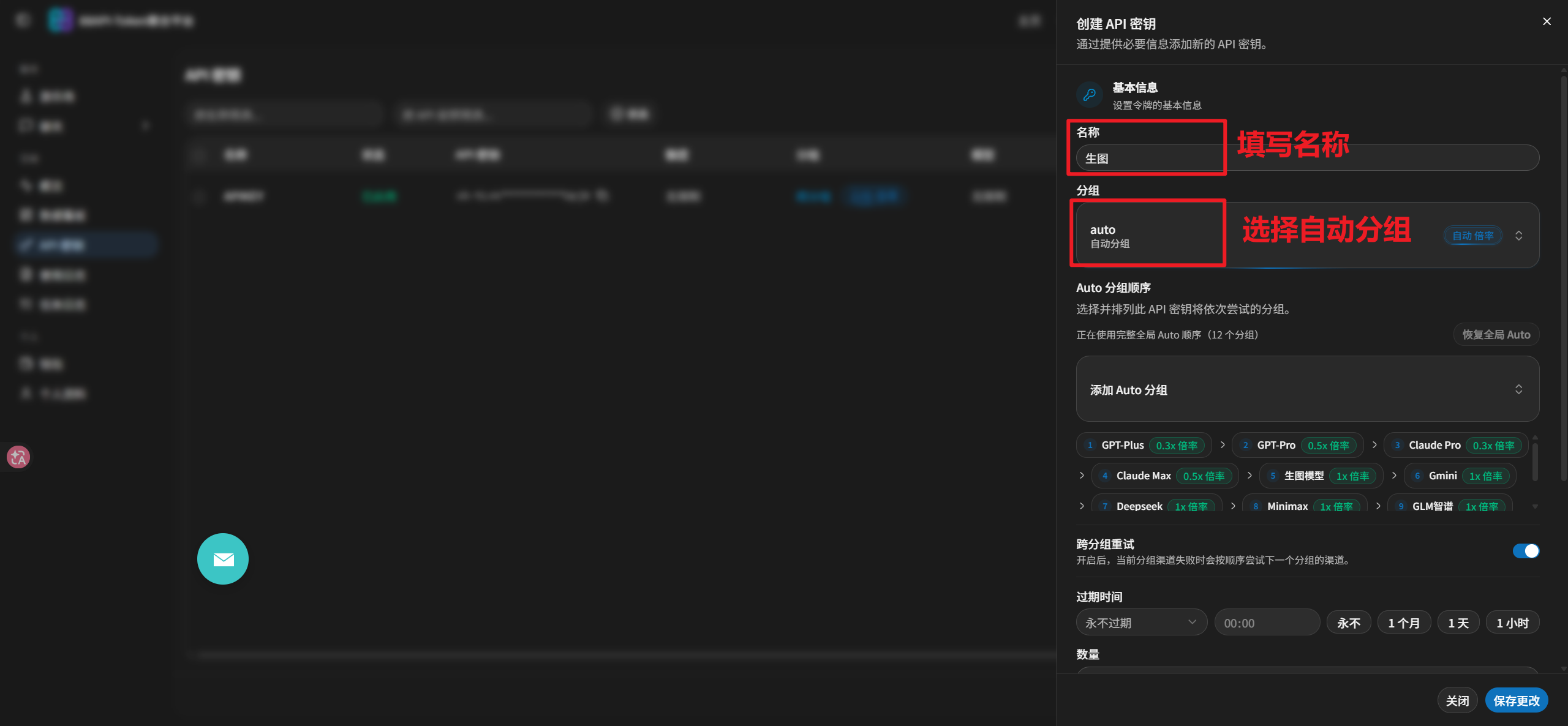
- Log in to 88API, open the API Keys page and click Create API Key. Enter any name and choose the group auto (automatic grouping). One key is enough; both plugins share it.
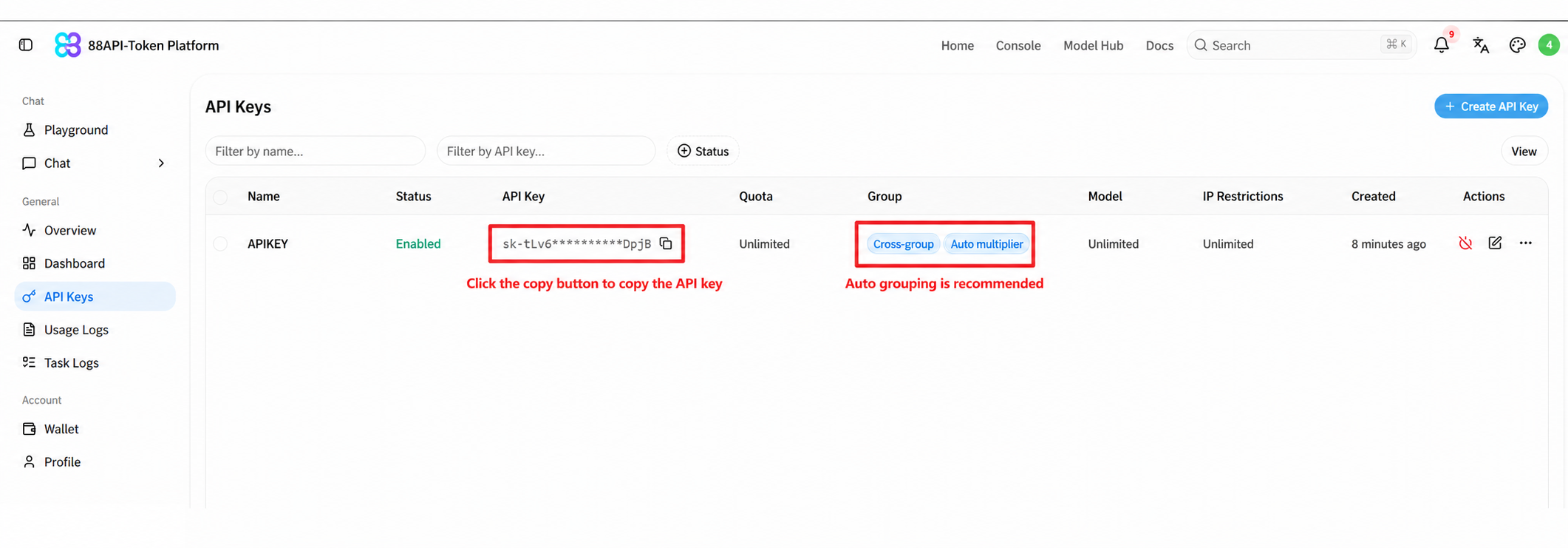
- In the API Keys list, click the copy button to copy the full key.
- In the new conversation, just say what you want, for example "Paint a watercolor of a little orange cat." When the Agent finds there's no key yet, it will ask you for one; send it the key you copied. It saves the key on your computer, verifies it with a masked preview (it only shows something like
sk-xxxx...xxxx), and then carries on with your request, so you don't have to repeat it.
The first time the video plugin makes a video, it also asks for a personal access token: sign in to the 88API console, open "Security & Access" on the left, and click "Create access token" under "Access tokens" (view-only permissions are enough), then send it to the Agent the same way. It is only used to check your balance, live prices and model availability, and it is not the same thing as your API key.
Step 3: Make Images and Videos in One Sentence
Make a 16:9 poster of a city on a rainy night, with neon lights reflected in the puddles.
Make a 10-second vertical sneaker ad.
See Generate Images and Generate Videos below for more examples.
Keeping your key safe
Only send your key in Agent conversations you trust. Never paste it into a GitHub issue, a public group chat or a screenshot. The key is saved in the ~/.88api/ folder on your computer and shared by both plugins and every client on that computer: once you set it up in one plugin, the other won't ask again. If you'd rather not send the key in chat, you can set the API88_KEY environment variable on your system instead.
Before You Start
- Node.js 18 or later: the plugins run Node.js scripts on your computer. If running
node -vin a terminal shows a version number, you're set. - ffmpeg: only needed for the video plugin's "reverse-engineer" and multi-segment "stitching" features. If you only make videos from one sentence, you can skip it for now.
- Approve once in sandboxed clients: clients such as DeepSeek Harness show an approval prompt when the key is saved; click Allow. In modes where you can't approve (such as headless runs), the key can't be saved, so set it up in a normal conversation instead.
Manual Installation
If the Agent couldn't install the plugin itself, follow the row for your client.
Image Plugin 88API-Image-Gen
| Client | How to install |
|---|---|
| Claude Code | In the conversation, enter /plugin marketplace add blackdm666/88API-image-gen, then /plugin install 88api-image-gen@88api-plugins |
| Codex | Run codex plugin marketplace add blackdm666/88API-image-gen in a terminal, then install 88API-Image-Gen from the plugin list |
| ZCode | Settings → Plugins → Create → Add marketplace, enter blackdm666/88API-image-gen, then install 88API-Image-Gen |
| DeepSeek Harness | Open "Add plugin", enter github:blackdm666/88API-image-gen and click "Install" |
| Trae | Run npx skills add blackdm666/88API-image-gen -g -a trae -y in a terminal |
Video Plugin 88API-Video-Studio
| Client | How to install |
|---|---|
| Claude Code | In the conversation, enter /plugin marketplace add blackdm666/88API-Video-Studio, then /plugin install seedance-studio@seedance-studio-plugins |
| Codex | Run codex plugin marketplace add blackdm666/88API-Video-Studio in a terminal, then install 88API-Video-Studio from the plugin list |
| ZCode | Settings → Plugins → Create → Add marketplace, enter blackdm666/88API-Video-Studio, then install 88API-Video-Studio |
| DeepSeek Harness | Open "Add plugin", enter github:blackdm666/88API-Video-Studio and click "Install" |
| Trae | Run npx skills add blackdm666/88API-Video-Studio -g -a trae -y in a terminal |
Restart DeepSeek Harness after installing
After adding a plugin in DeepSeek Harness, fully quit DeepSeek Harness (including the tray icon), reopen it, and start a new conversation. Otherwise the plugin list may still show the package name instead of the plugin name.
Other clients: copy the skill folder
For clients not in the tables above, copy the whole skill folder from the plugin repository into the client's skills directory, keep the folder name unchanged, then start a new conversation:
| Plugin | Skill folder |
|---|---|
| Images | plugins/88api-image-gen/skills/88api-image-gen/ |
| Videos | plugins/seedance-studio/skills/seedance-studio/ |
| Client | User-level skills directory |
|---|---|
| DeepSeek Harness (without the plugin) | ~/.dsh/skills/ or ~/.agents/skills/ |
| Trae (without the command) | ~/.trae/skills/ (on Windows, %USERPROFILE%\.trae\skills\) |
| Cursor, Gemini CLI and other clients that use the shared directory | ~/.agents/skills/ |
| Cline | ~/.cline/skills/ |
| ZCode (without the plugin) | ~/.zcode/skills/ |
Installation Instructions for the AI
This section is for the AI Agent installing the plugins on the user's behalf. When the user has asked you to read this article and install the plugins, follow these steps:
- Identify the client: work out which client you are running in (Claude Code, Codex, ZCode, DeepSeek Harness, Trae or another). If you're not sure, ask the user.
- Confirm which plugins to install: if the user didn't say, install both: the image plugin
blackdm666/88API-image-genand the video pluginblackdm666/88API-Video-Studio. - Install using the row for this client in the Manual Installation tables above:
- Claude Code, Codex, Trae: you can run the commands from the table in a terminal yourself (for Claude Code, use
claude plugin marketplace add <repository>andclaude plugin install <plugin name>). - ZCode, DeepSeek Harness: plugins can only be added on the settings page. Tell the user the steps from the table and the address to enter, one step at a time, and wait for them to finish.
- Other clients: copy the skill folder from the repository into that client's user-level skills directory (see "Other clients" below the tables).
- If a command needs approval or write permission, explain why to the user and ask for approval. Do not bypass the client's sandbox or permission settings.
- Claude Code, Codex, Trae: you can run the commands from the table in a terminal yourself (for Claude Code, use
- Tell the user to start a new conversation: the plugins only load in a new conversation (a new task in Codex). DeepSeek Harness also has to be fully quit and reopened.
- Set up the key: in the new conversation, the plugin guides the user to create an API key in the auto group and send it to you. Save it and verify it with a masked preview using the plugin's own commands. Do not repeat the full key in your replies, and do not write the key into project files or logs. The video plugin also needs a personal access token before making a video; the user sends that to you to save in the same way.
- Do not pay on the user's behalf: installation and setup never require a paid request. The first time the user asks you to make an image or video, follow the plugin's instructions; for videos, have the user choose a model and confirm the price first.
Generate Images
Just describe what you want, and name a model if you want a specific one:
Make a 16:9 poster of a city on a rainy night, with neon lights reflected in the puddles.
Use Nano Banana Pro to change the text in this screenshot to English, keeping the layout.
Use az-gpt-image-2 to make a panda sticker with a transparent background.
Use the person photo and product photo I sent to make a 4K product showcase image.
Use Grok to turn this photo into a watercolor painting.
Use Midjourney to make 4 cyberpunk concept images.
Which Model to Choose
If you don't name a model, the default gpt-image-2 is used. If you name a model or a series (such as "use Nano Banana" or "use Grok"), that model is used for that request only.
| Series | Models | Best for | Resolution | Billing |
|---|---|---|---|---|
| GPT Image | gpt-image-2 (default), gpt-image-2.5-flare, gpt-image-2.5-sunburst | General image creation and editing, exact pixel sizes | 1K / 2K / 4K | Per image |
| GPT Image native parameters | az-gpt-image-2, az-gpt-image-2.5-flare, az-gpt-image-2.5-sunburst | Transparent backgrounds, chosen output format, higher quality tiers, several images per request | 1K / 2K / 4K | Per token |
| Gemini (Nano Banana) | gemini-3.1-flash-image, gemini-nano-banana-2.1, gemini-3-pro-image | Text rendering, consistent characters, refining from reference images | 1K / 2K / 4K | Per request |
| Grok Imagine | grok-imagine-image, grok-imagine-image-quality, grok-imagine-image-2.0, grok-imagine-edit | Fast results, many aspect ratios (15) | 1K / 2K | Per image |
| Seedream | doubao-seedream-5-0-pro | Commercial visuals and posters, up to 14 public reference images | 1K / 2K | Per image |
| Midjourney | midjourney-v8.2, midjourney-v8.2-fast, midjourney-v8.2-turbo | Art and concept design, 4 images per run | — | Per request |
See the Pricing page for current prices. To find out which models your key can use, ask the Agent to "list the available image models"; this is free. For each model's parameter ranges, see the image API docs for GPT Image, Gemini, Grok and others.
Tips for Asking
- Aspect ratio, resolution, quality and transparent background can all be stated directly, for example "16:9", "4K", "high quality" or "transparent background". The plugin converts them into the chosen model's own parameters; options the model doesn't support are blocked before you pay, and you're told which values are allowed.
- When editing an image, if you don't give an aspect ratio, the result follows the first reference image. For a different ratio, just say "change it to 16:9". Reference images can be files on your computer or public image links.
- Several images or versions: "make 4 images" or "run the same prompt 3 times" both work; the plugin handles them in a single run.
- Images are saved to
~/Pictures/88api-image-genby default. The Agent tells you the actual path and which model and API each image used.
Generate Videos
The video plugin has three uses:
| Use | You say | What the Agent does | You get |
|---|---|---|---|
| Idea → finished video | "Make a 10-second vertical sneaker ad." | Lists the current video models and live prices → you choose a model → plans around the per-segment limit, splitting into segments and stitching them if needed | One short clip / TVC as an MP4 |
| Video → reverse-engineer | "Reverse-engineer the prompt for this video: D:\videos\ref.mp4" | Extracts frames and analyzes the visuals, camera moves, actions, on-screen text, dialogue, BGM and sound effects frame by frame | A prompt you can use directly to generate |
| Video → remake project | "Turn this reference clip into a remake project; I want to swap in my own product." | Builds on the reverse-engineered prompt to organize the storyboard, what each asset does, and a list of missing assets | A complete project you can generate in one go once the assets are filled in |
The first time you use it, the plugin briefly introduces these three uses, then carries on with your request.
One-Sentence Videos
- The Agent lists the ID, live price, capabilities and availability of every video model 88API currently offers, and you choose the model (the plugin won't decide for you);
- It plans around the chosen model's maximum length per segment. If your video is longer, it automatically splits it into segments and stitches them into one video at the end, showing you the split plan and total estimated cost first;
- Once you confirm, it submits the job, tells you the task ID, keeps tracking progress, and downloads the MP4 to the project folder when it's done (by default
./seedance-projects/<project name>/). The prompt for each segment is also saved in the project folder so you can review and reuse it.
A video usually takes a few minutes. Don't submit it again while you wait. Even if the conversation is interrupted, you can ask the Agent to "keep checking the video task from before"; it checks the same task and won't charge you again.
Image-to-Video and Consistent Characters and Products
Send the Agent your product shots, character photos or keyframes, and say what each one is for, for example "image 1 locks the product's shape, image 2 is the opening composition." Before you pay, the plugin checks that the images really are attached. If one is missing it stops right there, instead of quietly dropping the reference image and making the video anyway.
- If you need keyframes first, the video plugin can make the images itself, or you can use the image plugin to make more versions and then hand them to the video plugin.
- A person photo you provide separately and clearly label "use this person" becomes the only identity reference for that character. The original photo is attached to every keyframe and video, so the character doesn't drift further from the original over time.
- The original actors in a reference video are never reused directly; the plugin creates a new character. The background music of the original clip is not extracted either.
Limits
- Length, resolution, aspect ratio, reference assets and audio support depend on the chosen model's live description, and they vary a lot between models.
- Reference videos and reference audio need public links that can be downloaded directly; local images are uploaded automatically by the plugin before submission.
- "Available" means the model catalog, your account and your current key all passed their checks. It doesn't guarantee the upstream always has capacity, so a model can still be temporarily unavailable now and then.
- The plugin focuses on single short clips and TVCs, not multi-episode series. If you want a series, make one sample episode or trailer first to settle the style and main character.
For each video model's parameters and billing, see the Video API docs.
Costs and Safety
- See the price before you pay: before every paid request, the video plugin shows the chosen model, unit price and estimated cost. For image billing units, see the model table above; prices are listed on the Pricing page.
- Checks before you pay: if the aspect ratio, resolution, quality, background or number of reference images doesn't match what the model supports, you get an error right away. No request is sent and nothing is charged.
- Free checks: listing available models, checking your balance, viewing the configuration and dry-running a request are all free.
- Never resent automatically: once a request may have been received by 88API, the plugin never retries automatically or switches models or APIs, so you're never charged twice. The Agent only submits again when you clearly say "retry".
- Check the records after an interruption: if a command is interrupted or times out, first ask the Agent to check the task or submission records from before. Only decide whether to retry once you're sure no image or video was made. If an image was generated but the download failed, the plugin keeps the result link so you can download it again for free (the link expires after about 1 hour).
- If your key's group doesn't offer the model you named, 88API tells you right away which groups can use it, and such requests are not charged.
Long Tasks and Interruptions
An image usually takes from ten-odd seconds to a minute; high quality, 4K or Gemini Pro can take several minutes. A video usually takes from a few minutes to over ten minutes. Some clients end commands earlier (Claude Code, for example, defaults to 2 minutes), so the plugin has the Agent run paid and waiting commands in the background.
When a command is interrupted, the request may already have been received and charged. Don't resend it right away; ask the Agent to check the status first.
Codex Auto mode shows a 429 for network approval
In Auto mode, Codex runs a network execution approval before the plugin accesses the internet. If the error mentions external network execution authorization, sandbox network permission or the approval service, or the approval service returns 429 Too Many Requests, that's rate limiting in Codex's approval layer, not a problem with 88API, your key or the model. A blocked task was never sent to 88API, so you aren't charged.
To avoid repeated approvals:
- On Windows, press
Ctrl+,to open Codex settings. - Go to General → Permissions and enable Full access.
- Back in the task, choose Full access in the permission menu below the input box.
- Combine the remaining images into a single batch request and submit it again.
Full access removes the local sandbox and approval limits for the current task, so decide for yourself whether to turn it on; the plugin never changes your permission settings. If the option is grayed out, it may be restricted by your organization's policy. In that case keep using a single batch request, so you only have to approve once.
Updating the Plugins
The simplest way is to tell the Agent "update the 88API image and video plugins to the latest version." You can also update them manually:
| Client | Image plugin | Video plugin |
|---|---|---|
| Claude Code | claude plugin marketplace update 88api-plugins, then claude plugin update 88api-image-gen@88api-plugins | claude plugin marketplace update seedance-studio-plugins, then claude plugin update seedance-studio@seedance-studio-plugins |
| Codex | codex plugin marketplace upgrade 88api-plugins | codex plugin marketplace upgrade seedance-studio-plugins |
| ZCode | Refresh the marketplace in the plugin settings and update | Same as left |
| DeepSeek Harness | Uninstall and add it again, then fully quit and reopen | Same as left |
| Trae | npx skills update -g -y (updates both plugins together) | Same as left |
After updating, start a new conversation (a new task in Codex). To check which version is installed, ask the Agent "what version is the plugin now?"
FAQ
The Agent doesn't use the plugin in a new conversation
Make sure the plugin is enabled, then start a new conversation. You can also name it directly in your request, for example "Use 88API-Image-Gen to paint…" or "Use 88API-Video-Studio to make…". If Trae or another client doesn't call skills automatically, name the skill in your request: 88api-image-gen for images, seedance-studio for videos.
The Agent keeps saying no key is configured
Ask the Agent to "show the plugin configuration" to see whether the key is saved and which file it comes from. In sandboxed clients such as DeepSeek Harness, the key isn't saved if you didn't approve the prompt. Send the key again and click Allow in the pop-up.
The model I named doesn't work
It means your key's group doesn't offer that model. The request is still sent, and 88API returns the groups that can use it; these rejections are not charged. On the API Keys page of the 88API console, change the key's group to auto, or switch to a group that includes the model.
88API added a new model and the plugin doesn't recognize it
The image plugin refreshes its model list automatically once a day, or you can tell the Agent to "refresh the image model list" to update it right away. The video plugin reads the live model list before every video.
The error says "request was not sent" or "NO-AUTO-RETRY"
- request was not sent: the plugin couldn't reach 88API. The request wasn't sent and nothing was charged; the plugin retries automatically.
- NO-AUTO-RETRY or a request timeout: the earlier request may already have been charged, so the plugin won't resend it on its own. Ask the Agent to check the records first; once you're sure no image was made, clearly say "retry" and the Agent will submit it again.
The video is taking a long time
Generation time varies a lot between models; anything from a few minutes to over ten minutes is normal. The plugin keeps reporting progress, so don't submit again. If the conversation is interrupted, just ask the Agent to keep checking the original task.
The DeepSeek Harness plugin list shows the package name
Fully quit DeepSeek Harness (including the tray icon) and open it again.