
AstrBot - Agent Chatbot
AstrBot Configuration Tutorial — Integrating the open-source Agent chatbot platform with 88API to inject AI capabilities into instant messaging platforms like QQ, Feishu, DingTalk, and WeChat Work.
AstrBot is an open-source, all-in-one Agent chatbot platform that seamlessly integrates large language model capabilities into mainstream instant messaging software such as QQ, Feishu, DingTalk, and WeChat Work, creating a reliable and scalable conversational AI infrastructure for individuals, developers, and teams. Whether it's a personal AI companion, intelligent customer service, automation assistant, or enterprise knowledge base, AstrBot can quickly build production-ready AI applications within your instant messaging platform's workflow.
- Official Website: https://astrbot.app
- Official Documentation: https://docs.astrbot.app
- Project Homepage: https://github.com/astrbotdevs/astrbot
88API Integration Method
AstrBot supports integrating 88API as a model provider, allowing users to access and utilize various AI model services through 88API.
Configuration Steps
Obtain 88API API Key
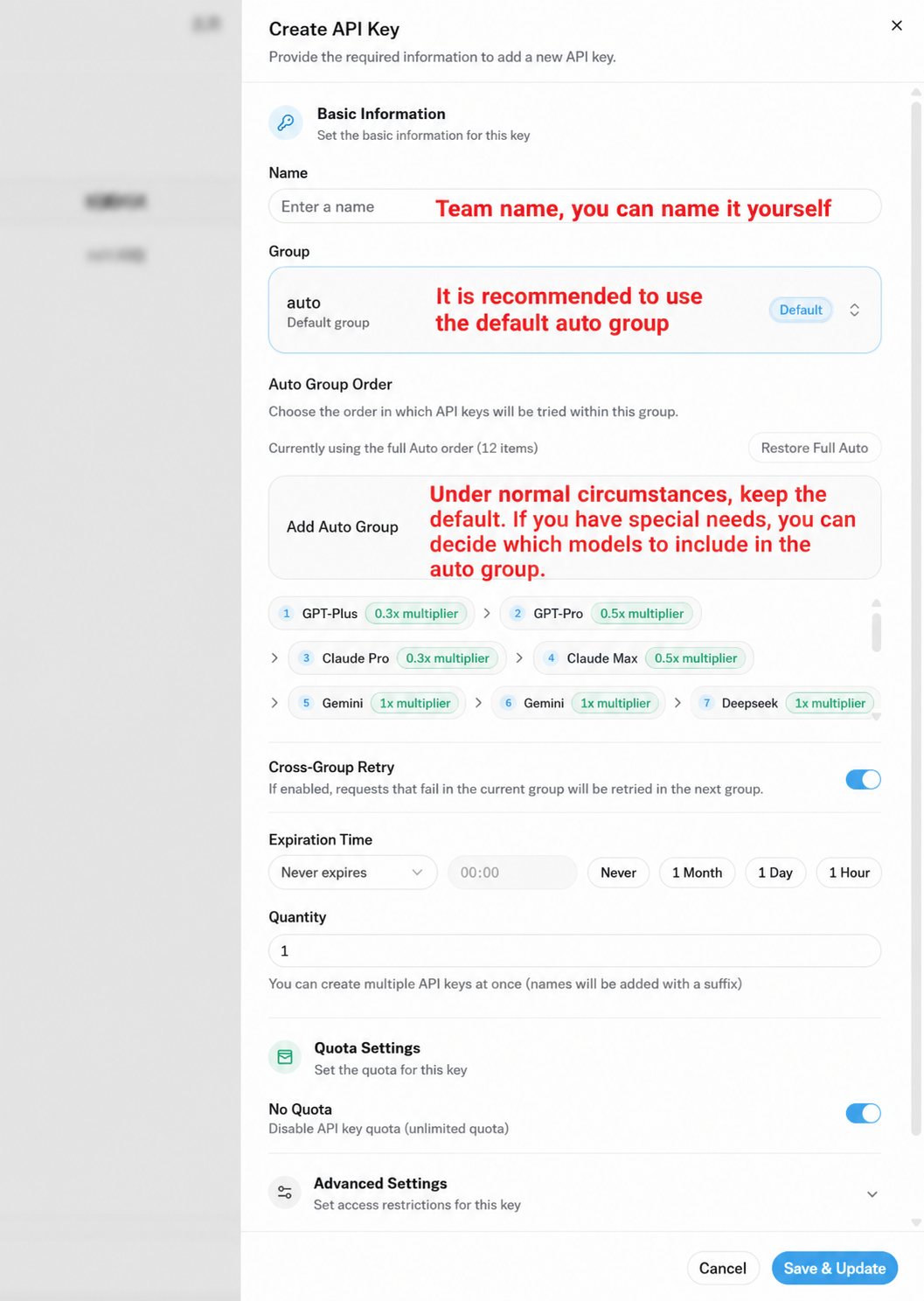
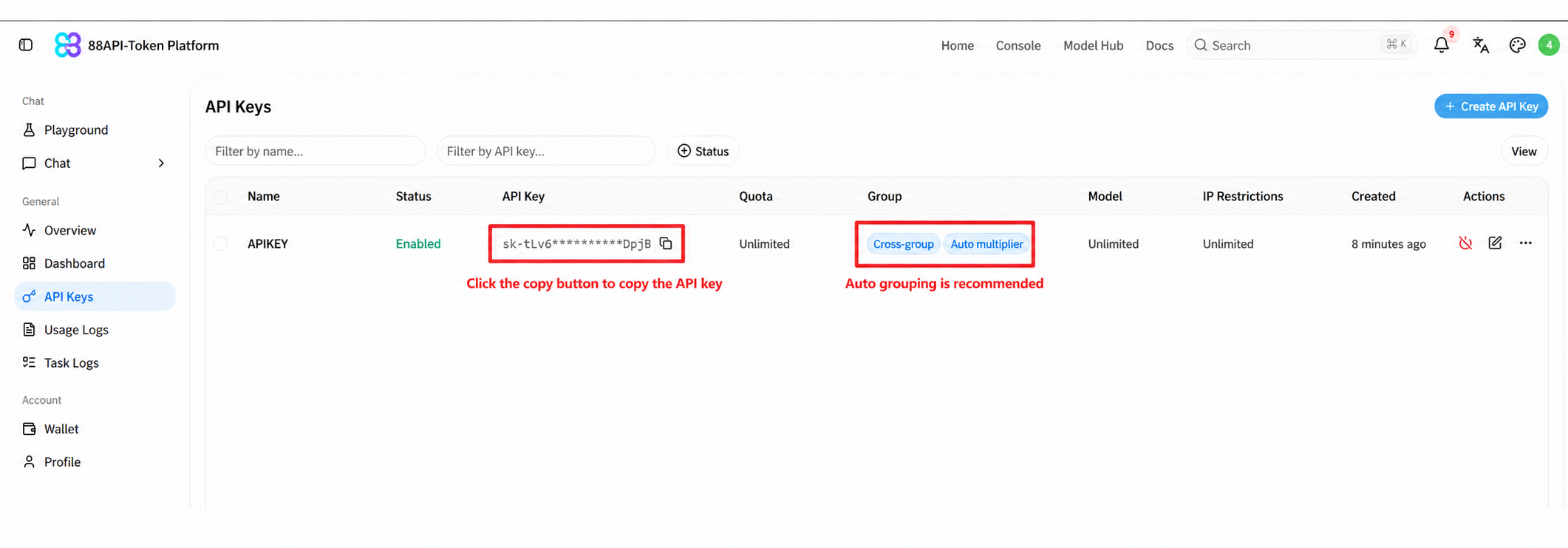
After registering and logging into 88API, click 'Console' in the top navigation bar, select 'API Keys' in the left sidebar, click 'Create API Key' in the top-right corner, enter a name, keep the group set to auto (recommended), and click 'Save & Update'.
After successful creation, click the copy button next to the key in the API Keys list to copy the generated API Key.
Configure 88API Service Provider in AstrBot
Open the AstrBot administration panel and go to the 'Providers' page. Stay on the 'Chat Completion' tab, click the 'Add' button next to 'Provider Sources' on the left, and choose 'OpenAI Compatible' in the 'New model provider' list that pops up.
88API supports both the OpenAI Chat Completions and Responses interfaces. We recommend 'OpenAI Compatible' (Chat Completions), which works with all chat models on 88API. 'OpenAI Responses' only works with models that support Responses (such as gpt-6.1-sol and claude-sonnet-5-5); Gemini models do not support Responses, so do not use them with that type.
Fill in the provider source settings:
- ID:
88API(you can choose your own) - API Key: paste the 88API API Key you just copied
- API Base URL:
https://api.88api.ai/v1(it must end with/v1; AstrBot does not add it automatically)
Keep your API key secure and never paste it into an untrusted application or page.
When you have filled in the fields, click Save Configuration at the top right, then click Fetch Model List ③ in the Models section below. Find the model you want (for example gpt-6.1-sol, claude-sonnet-5-5, gemini-3-flash) in the available model list and click + to add it. If the list does not load, click Custom Model and enter the model ID manually. Added models appear under Configured Models ④; click the test icon next to a model to check that it works.
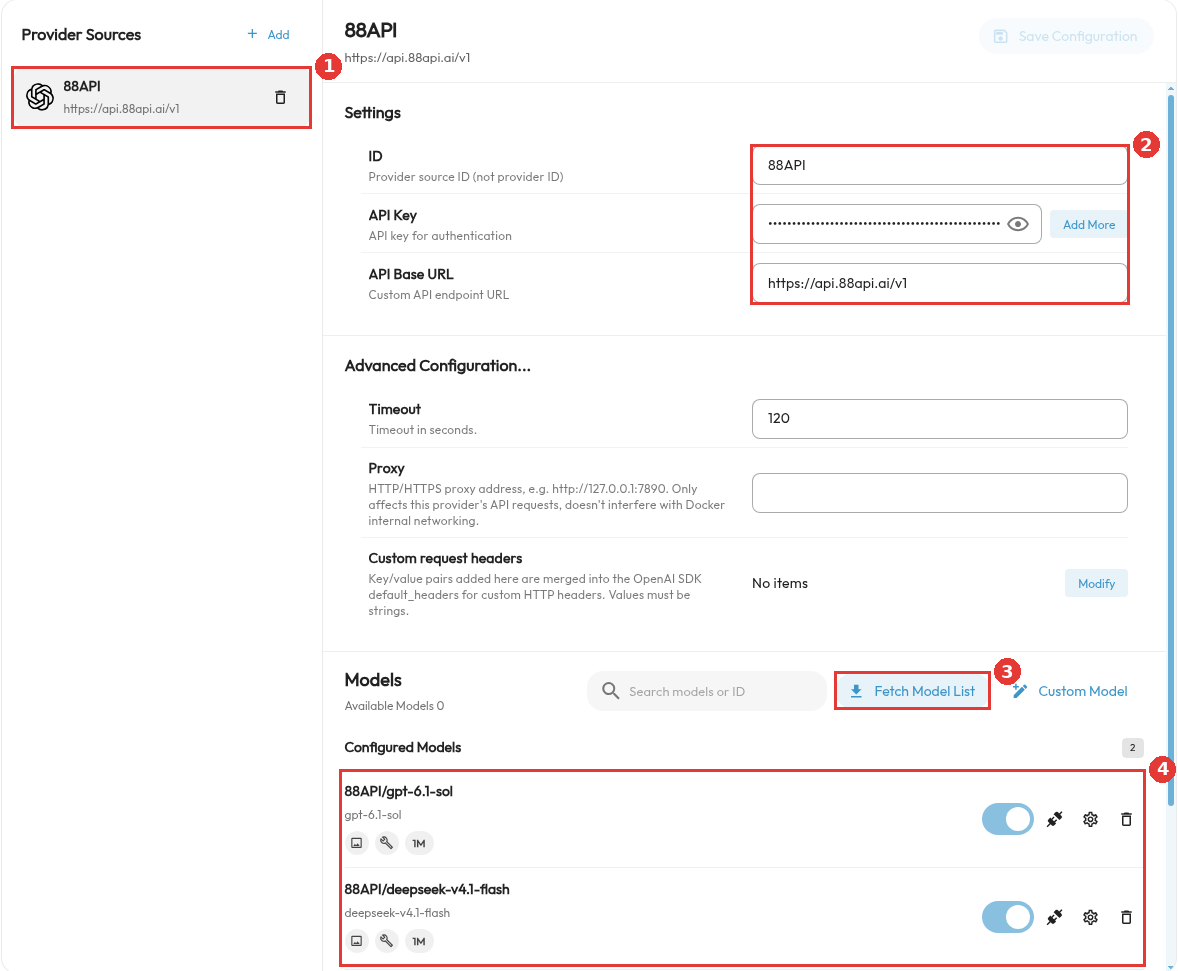
Callouts: ① provider source 88API; ② ID, API Key, API Base URL; ③ Fetch Model List; ④ Configured Models.
Apply Service Provider
Open Config, choose the configuration you are using (Default Configuration by default), and under AI → AstrBot Built-in AI → Model, set Chat Model ① to the 88API model you just added (shown as "provider source ID/model ID", for example 88API/gpt-6.1-sol). Then click the save button at the bottom right.
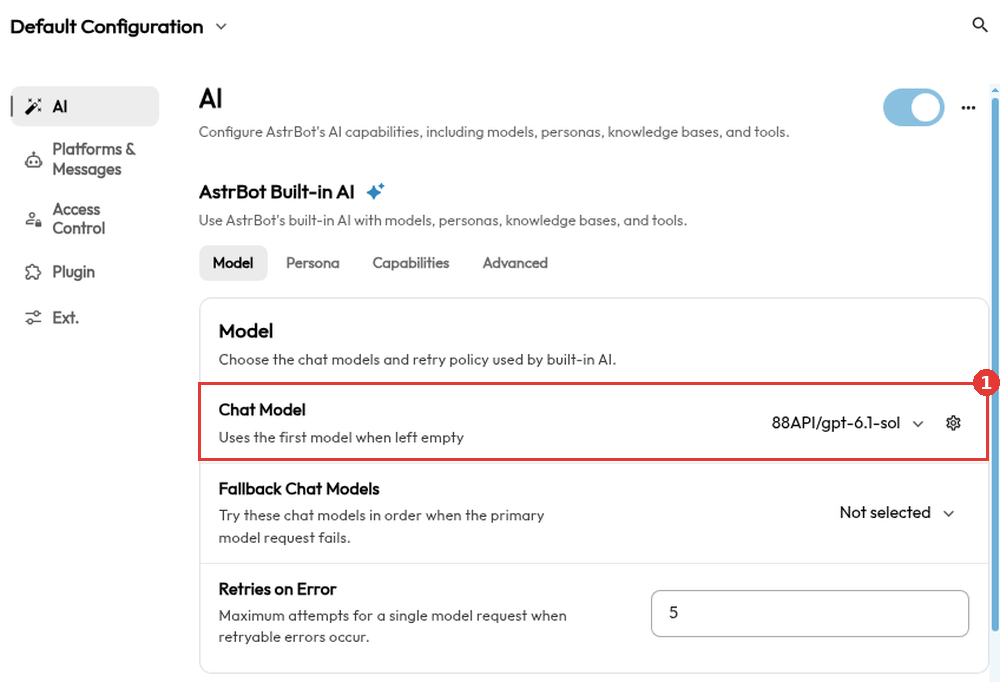
If Chat Model is a model that supports image input (for example 88API/deepseek-v4.1-flash), you can send images in the chat directly. You do not need to set an Image Caption Model.
At this point, you have successfully configured 88API as AstrBot's model provider. Now, you can access and use various AI model services provided by 88API through AstrBot.