
LangBot - IM Bot Development Platform
LangBot configuration tutorial — add 88API as a provider in LangBot to give Lark, DingTalk, QQ, WeCom, Telegram and other bots AI chat capabilities.
LangBot is an open-source IM bot development platform that supports multiple instant messaging platforms such as Lark, DingTalk, WeChat, QQ, Telegram, Discord, Slack, and more. It integrates with globally leading AI models, supports knowledge bases, Agent, MCP, and various other AI application capabilities, and is perfectly compatible with 88API.
- Official Website: https://langbot.app/en
- Download: https://github.com/langbot-app/LangBot/releases
- Official Documentation: https://docs.langbot.app/en/insight/guide
- Open Source Repository: https://github.com/langbot-app/LangBot
Integrating with 88API
LangBot can use 88API to access a wide range of large models and give your bots AI chat capabilities.
Usage Instructions
-
Get API key from 88API
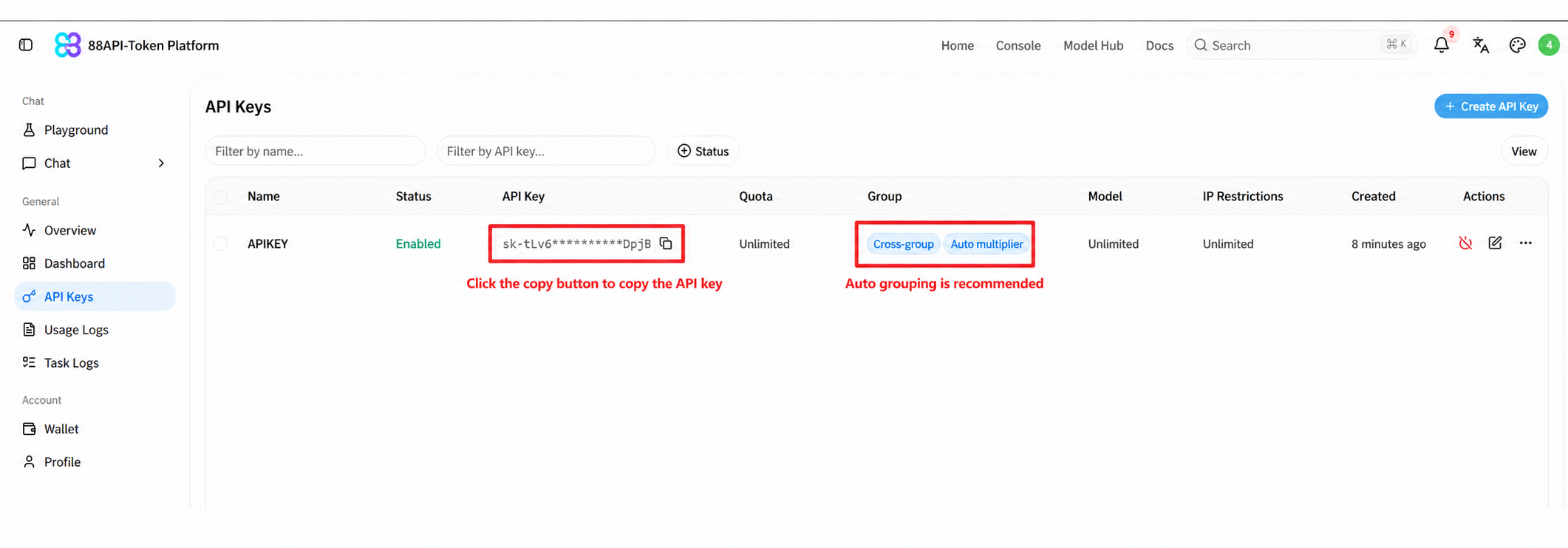
When using 88API, set the request URL to
https://api.88api.ai/v1. Note that the address must end with/v1. -
In LangBot, click 'Models' at the bottom left, click 'Add Provider' and fill in:
- Provider Name:
88API - Provider Type: choose 'New API' under the 'Aggregation Platform' group (you can also choose 'OpenAI')
- Request URL:
https://api.88api.ai/v1(selecting New API pre-fillshttp://localhost:3000/v1, which you must replace; the URL must end with/v1) - API Key: paste the 88API API key from step 1
After clicking Save ⑤, click Add Model on the 88API provider card and enter the model name on the Chat tab (for example
gpt-6.1-sol). For image input, you must tick Vision Ability for a vision model (for exampledeepseek-v4.1-flash); otherwise images sent to the bot are not passed to the model. Tick Function Call if you need tool calling, then click Add. Alternatively, click the scan icon on the card, choose Scan Models, tick the models you need, and click Add Selected.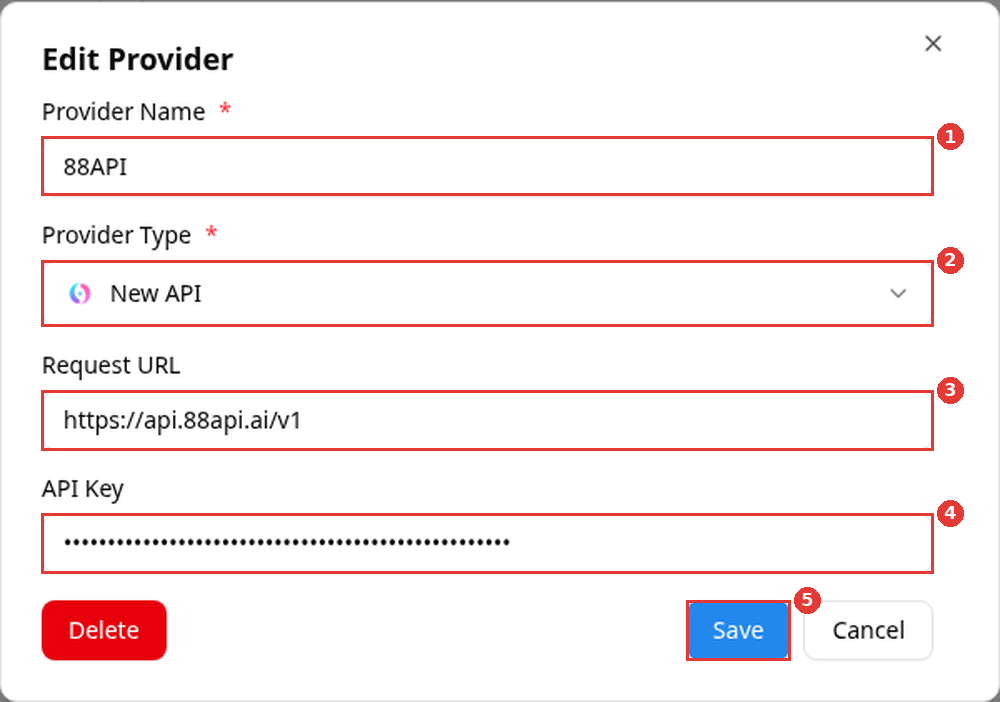
- Provider Name:
-
Open the pipeline you use, go to the AI Feature tab, set Runner ① to Local Agent, and under Model choose the 88API model you just added ② (for example
gpt-6.1-sol; for image input choosedeepseek-v4.1-flash, which shows an eye icon). Then click Save at the top right.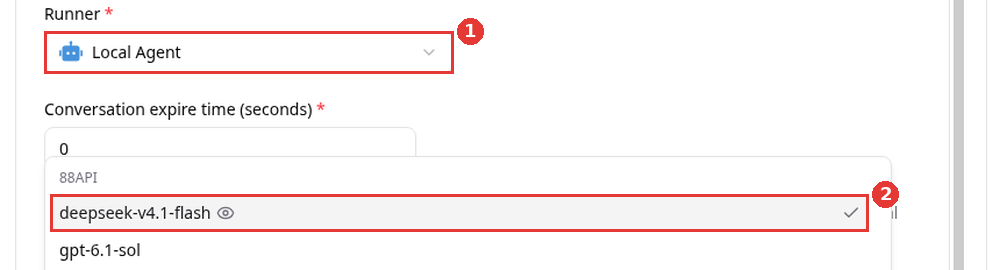
-
Chat in the debug chat panel on the left of the pipeline page or with the bot bound to the pipeline. With a model that has Vision Ability ticked, click the image button next to the input box to send an image.
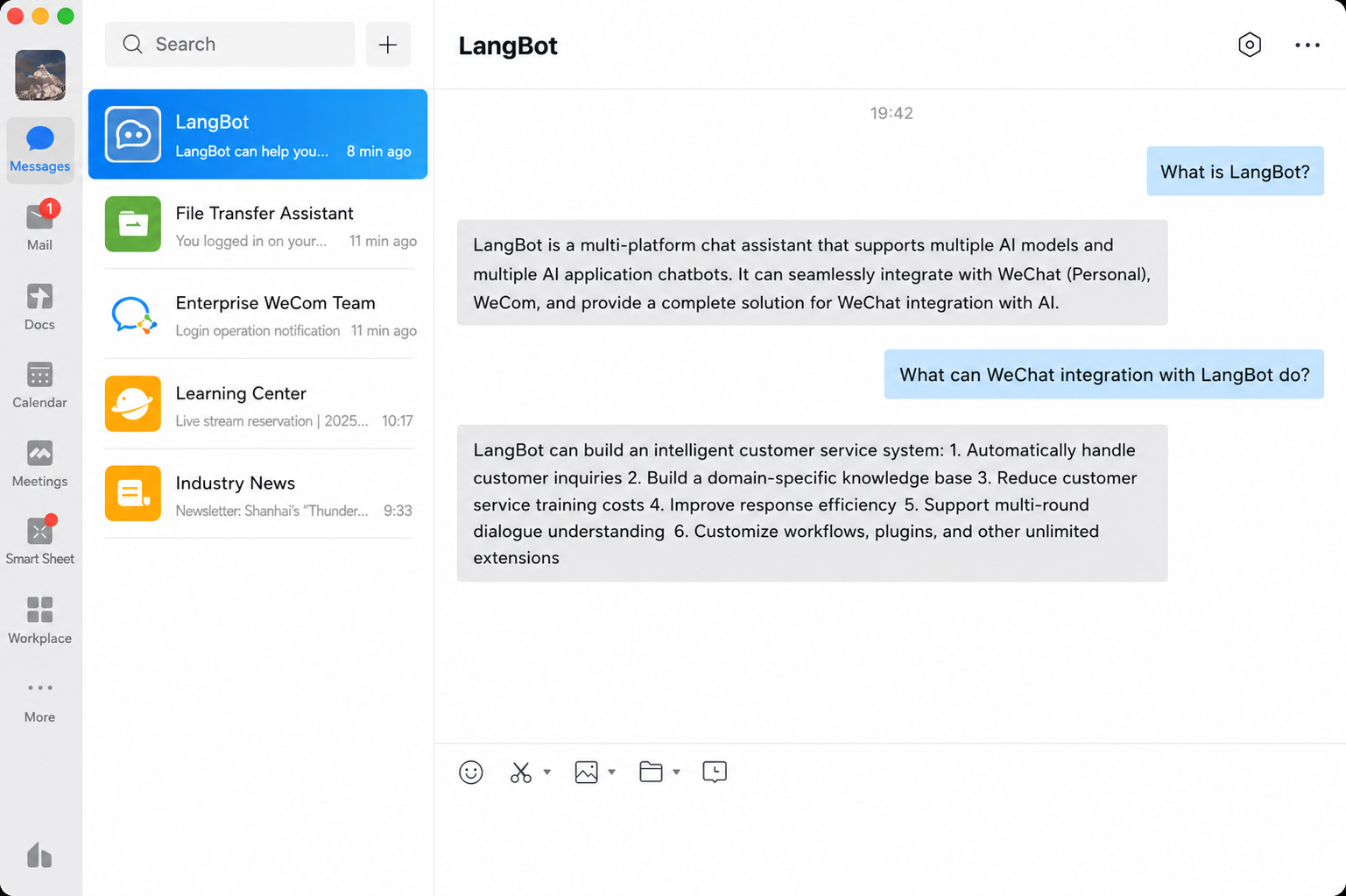
For deploying and configuring bots, please refer to Deploy Bots.
Using LangBot Knowledge Base
88API does not currently offer embedding models, so knowledge base vectorization needs another embedding model. The chat part can still use 88API models.
Since LangBot 4.9, knowledge bases are powered by 'Knowledge Engine' plugins: first install a knowledge engine plugin from the plugin market, then click 'Create Knowledge Base' on the 'Knowledge' page, select the knowledge engine, and choose the embedding model in 'Engine Settings'. You can add an embedding model under 'Models', for example LangBot's built-in 'Chroma Embedding' or 'SeekDB Embedding' (runs locally; the model files are downloaded automatically on first use). See the LangBot knowledge base documentation for details.
For more usage methods, please refer to the LangBot official documentation.